Channels
What it's for
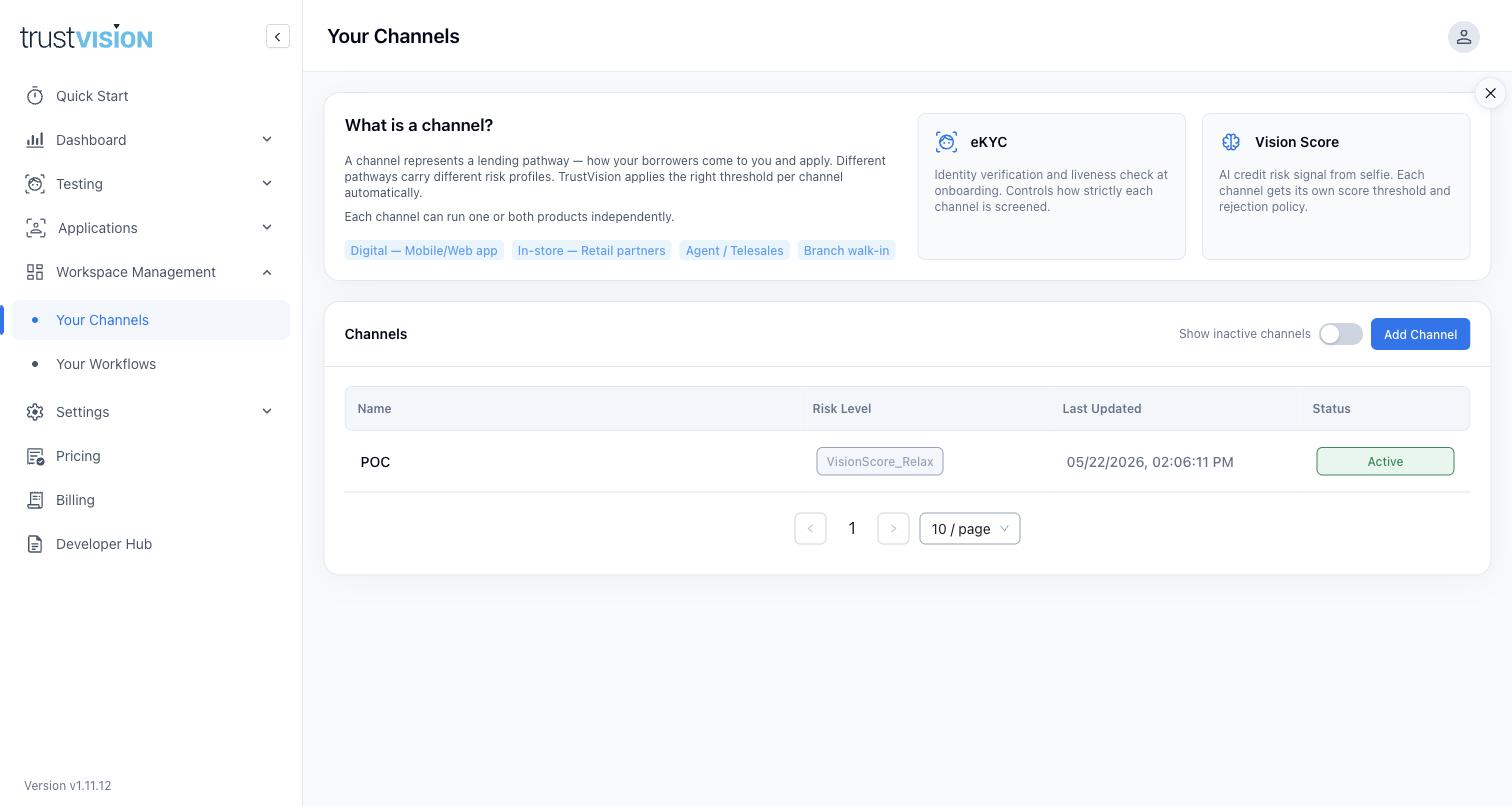
A Channel represents a lending pathway — how your borrowers come to you and apply. Different pathways carry different risk profiles: an applicant onboarding through your mobile app behaves differently, and carries a different fraud/risk profile, than one being onboarded in person by a branch agent. Channels let you apply the right verification strictness and risk threshold to each pathway automatically, rather than using one blanket policy for every applicant — create one channel per genuinely distinct pathway in your business, rather than forcing every applicant through a single configuration.
Typical channel types include: Digital (mobile/web app), In-store (retail partners), Agent/Telesales, and Branch walk-in. Each channel can run eKYC, Vision Score, or both, independently. When you add a new lending pathway — a new partner, app, or region — create a new channel for it rather than repurposing an existing one, so historical performance data stays comparable. Use Show inactive channels to see channels you've deactivated rather than deleted; deactivating preserves historical data and keeps reactivation available later.
What you can configure
Every channel has two configuration tabs:
Business configuration (the part relevant to this guide):
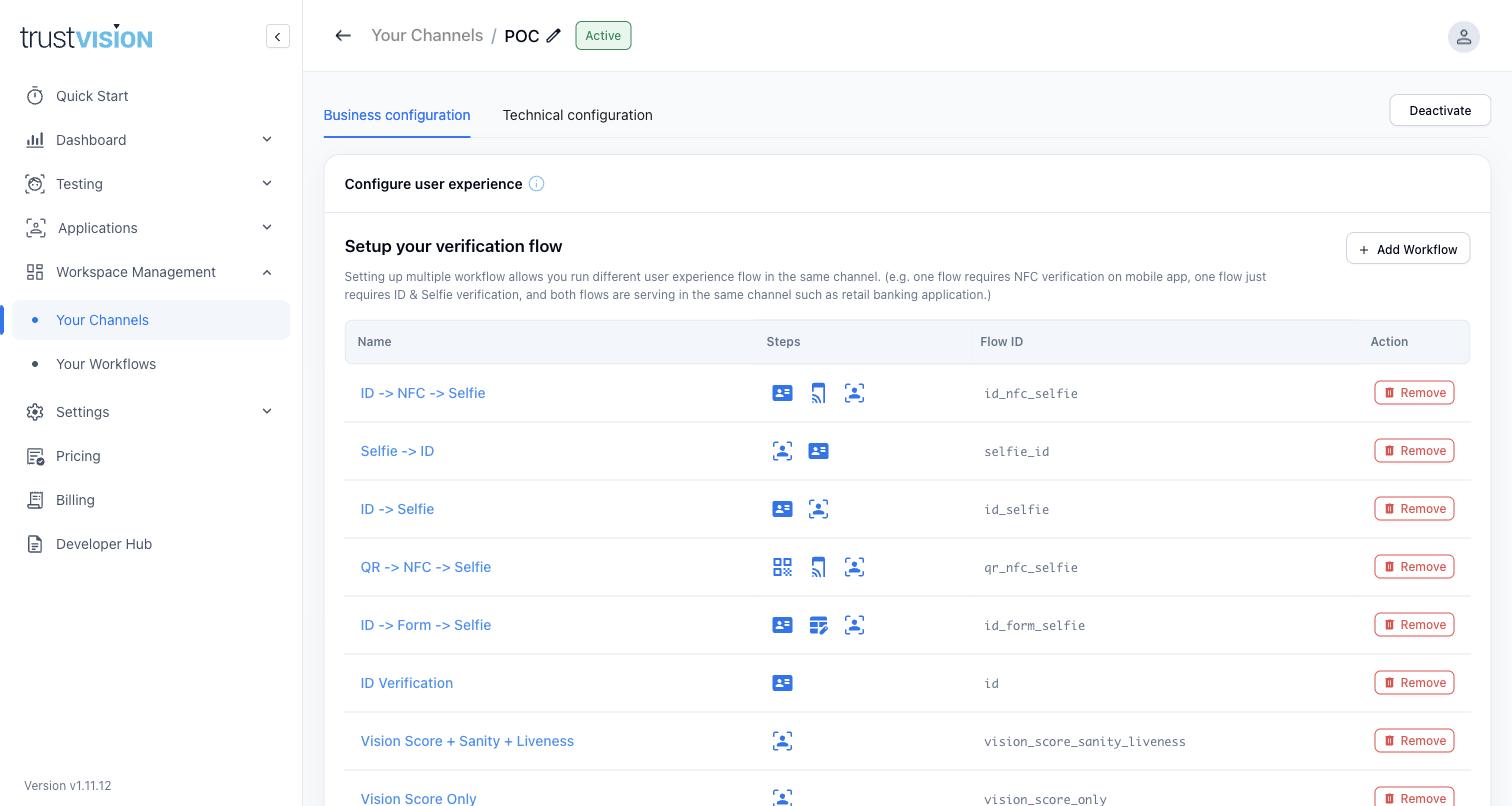
- Verification flow(s) — which Workflow(s) this channel runs. A channel can offer more than one workflow — for example, one flow that requires NFC verification for the mobile app, and a simpler ID + Selfie flow for a scenario where NFC isn't practical — with both flows serving the same channel.
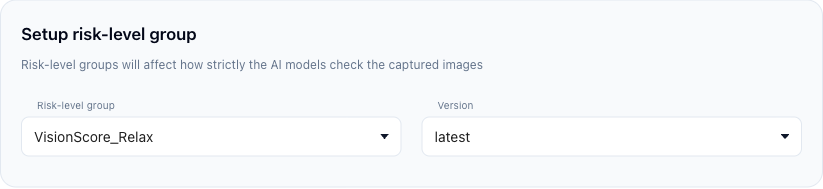
- Risk-level group — controls how strictly the AI models evaluate captured images and scores for this channel (e.g. a "Relax" group for a lower-risk pathway vs. a stricter group for a higher-risk one), plus which model Version to use. Review performance per channel in Vision Score Dashboard and eKYC Dashboard — filtering by channel is the fastest way to spot one pathway underperforming or over-rejecting relative to others.
Technical configuration fields
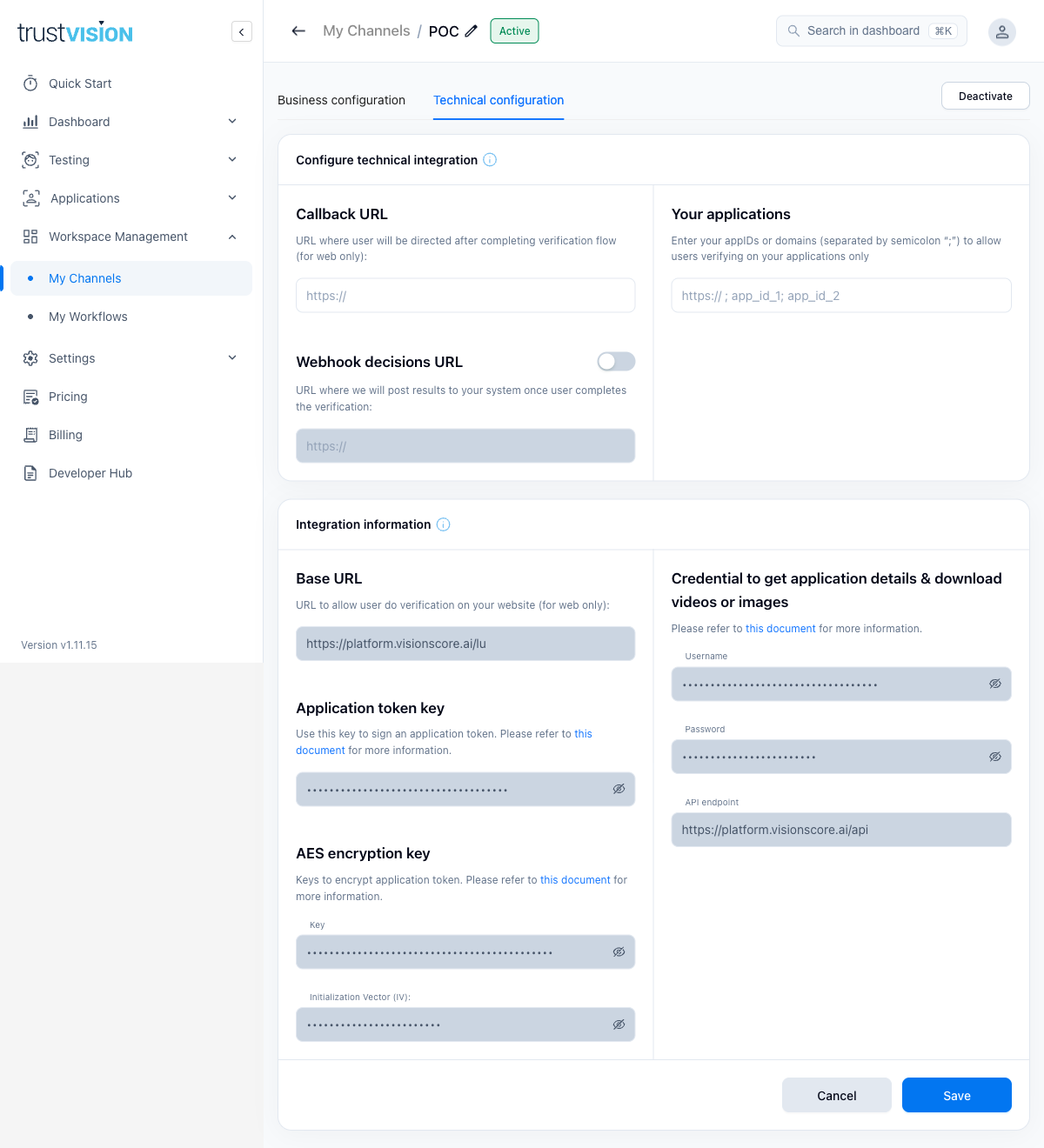
The Technical configuration tab holds the values you need to wire this channel into your own system:
- Callback URL — despite the name, this is a redirect, not a notification: where the user's browser is sent after completing the verification flow (web only). Nothing is posted to it; see Redirect URL.
- Webhook decisions URL — off by default; toggle it on to have results posted to your server as soon as the user completes verification. This is the endpoint that receives the result payload; see Use webhook URL.
- Your applications — the appIDs or domains (semicolon-separated) allowed to run verification through this channel.
- Base URL — the read-only URL your web integration sends users to for verification on this channel.
- Application token key and AES encryption key (Key + Initialization Vector) — used to sign and encrypt the application token; see Authentication for how to use them.
- Credential to get application details & download videos or images — a Username/Password pair plus the API endpoint, used to call the platform APIs for this channel; see Authentication.
Related areas
- To understand what a Workflow actually configures within a channel, see Workflows.
- To see how a channel's configuration shows up in performance data, see Vision Score Dashboard and eKYC Dashboard.
- To customize the branded look of the verification experience per channel, see Theme.