APP TrustVision Guideline
Installation Instruction
Scan QR to download the Trusting Social TrustVision App (eKYC/FA) on App Store or Google Play.

Home Screen
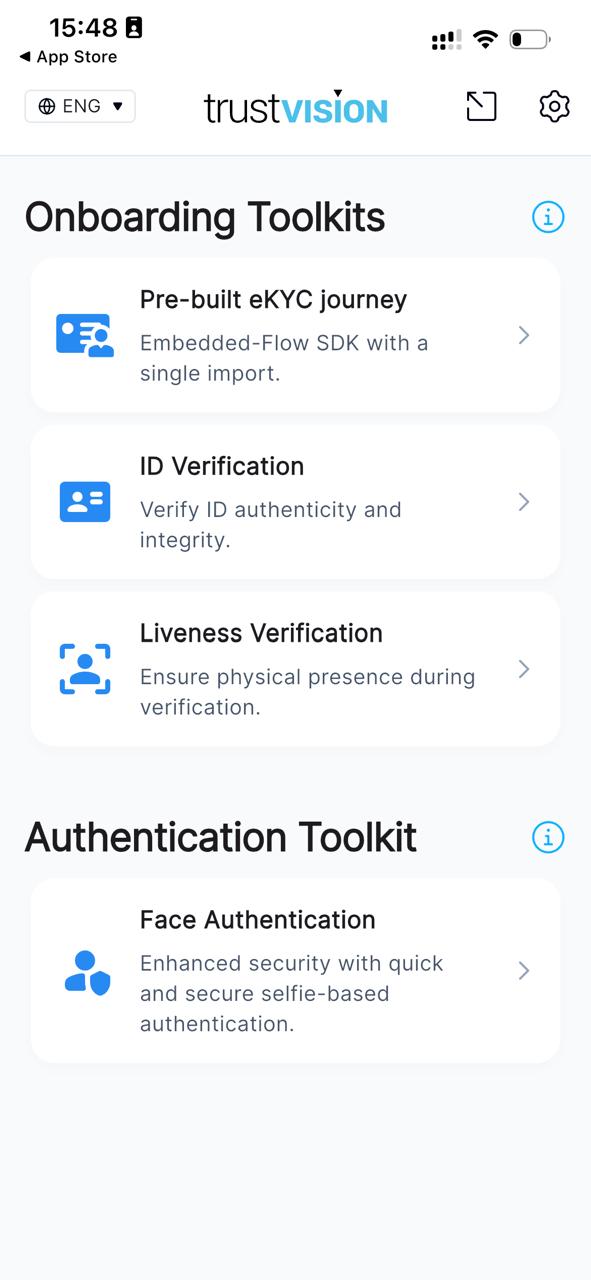
After opening the app, the Home screen displays all available toolkits, grouped into two sections:
- Onboarding Toolkits — Pre-built eKYC Journey, ID Verification, and Liveness Verification.
- Authentication Toolkit — Face Authentication.
Tap on any card to open its corresponding flow.
Main Features
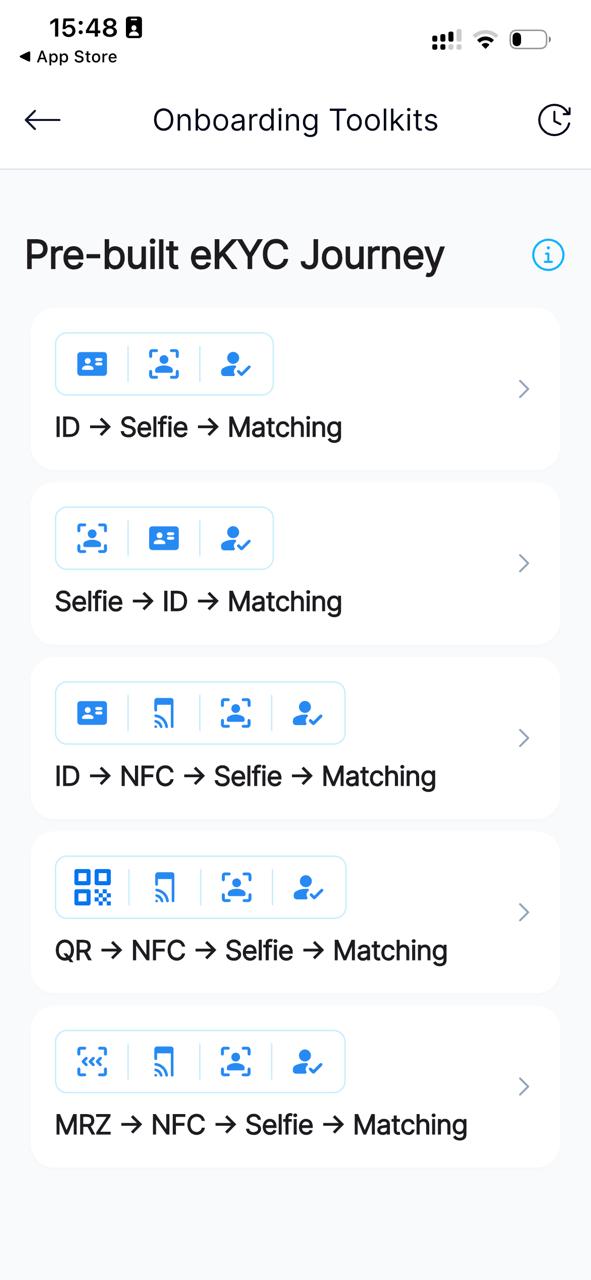
- Onboarding Toolkits › Pre-built eKYC Journey — ready-made verification sequences that combine ID capturing, NFC, selfie, and face matching, e.g. ID → Selfie → Matching, Selfie → ID → Matching, ID → NFC → Selfie → Matching, QR → NFC → Selfie → Matching, MRZ → NFC → Selfie → Matching.
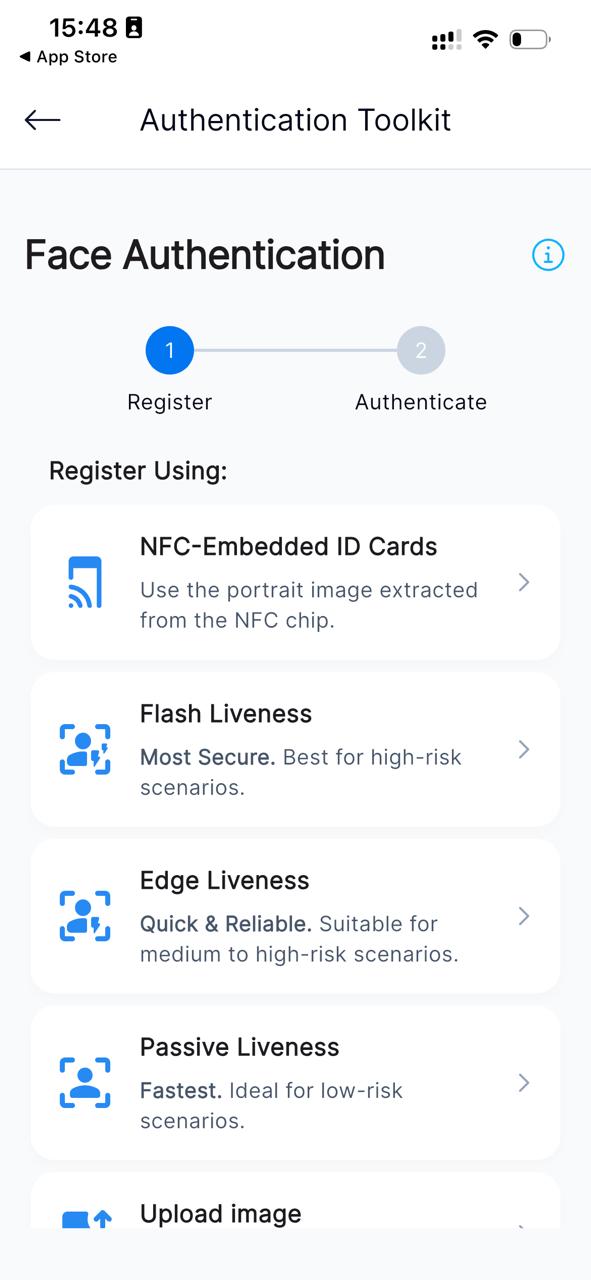
- Authentication Toolkit › Face Authentication — runs in two steps, Register and Authenticate, and supports several registration methods: NFC-Embedded ID Cards (portrait extracted from the NFC chip), Flash Liveness (most secure), Edge Liveness (quick & reliable), Passive Liveness (fastest), or an uploaded image.
Selfie Capturing
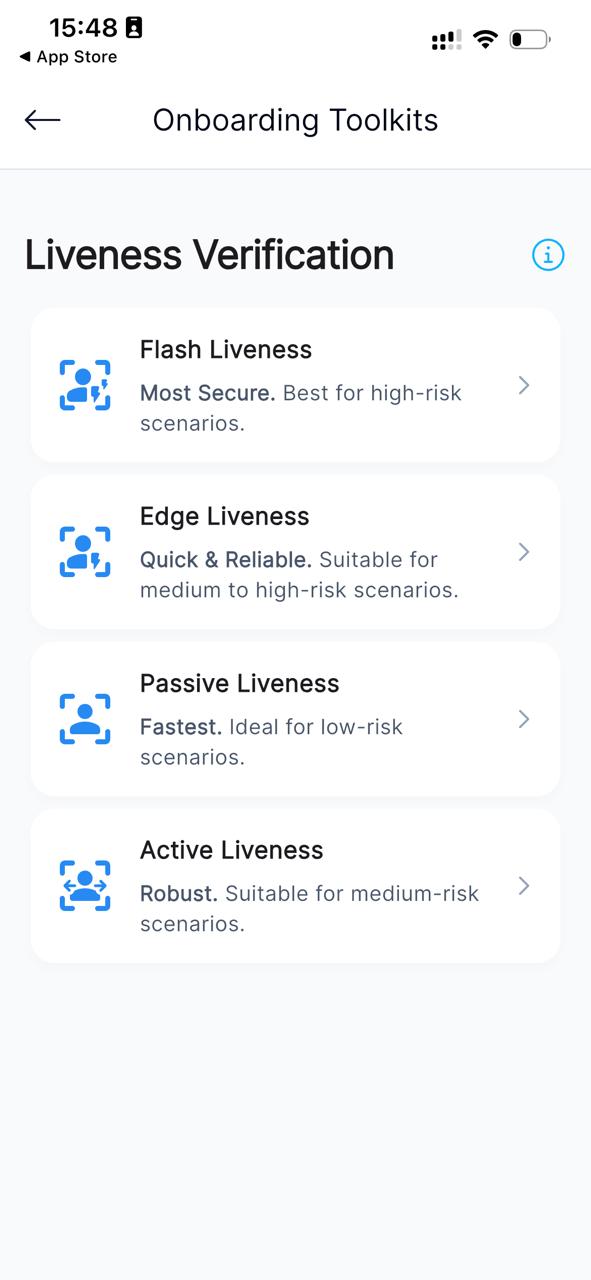
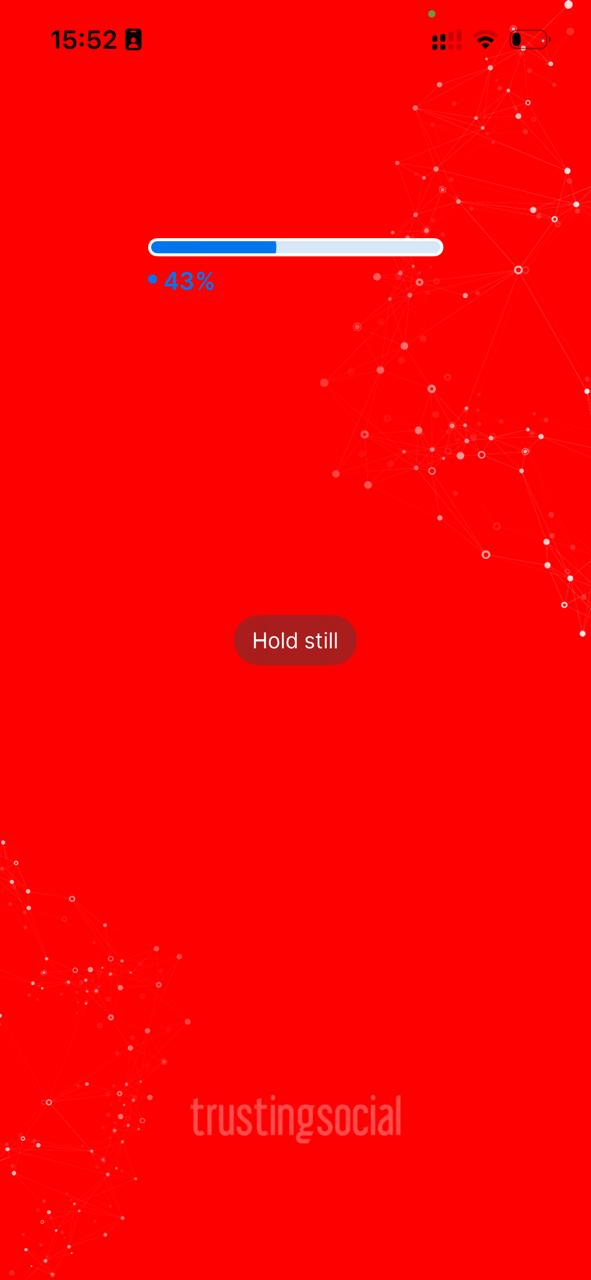
- Multiple liveness modes — Flash Liveness (most secure), Edge Liveness (quick & reliable), Passive Liveness (fastest), and Active Liveness (robust), covering different risk levels.
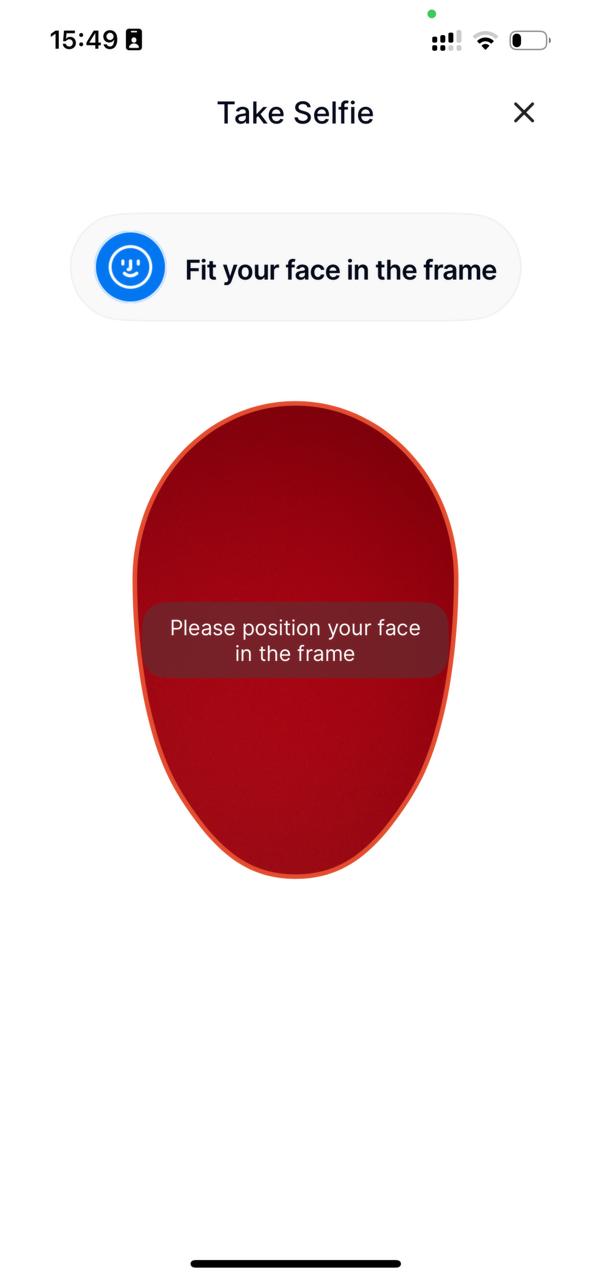
- Guided face capture — an on-screen frame and real-time hints (e.g. "Fit your face in the frame") help users position their face correctly, with tips against glasses, face masks, and glare.
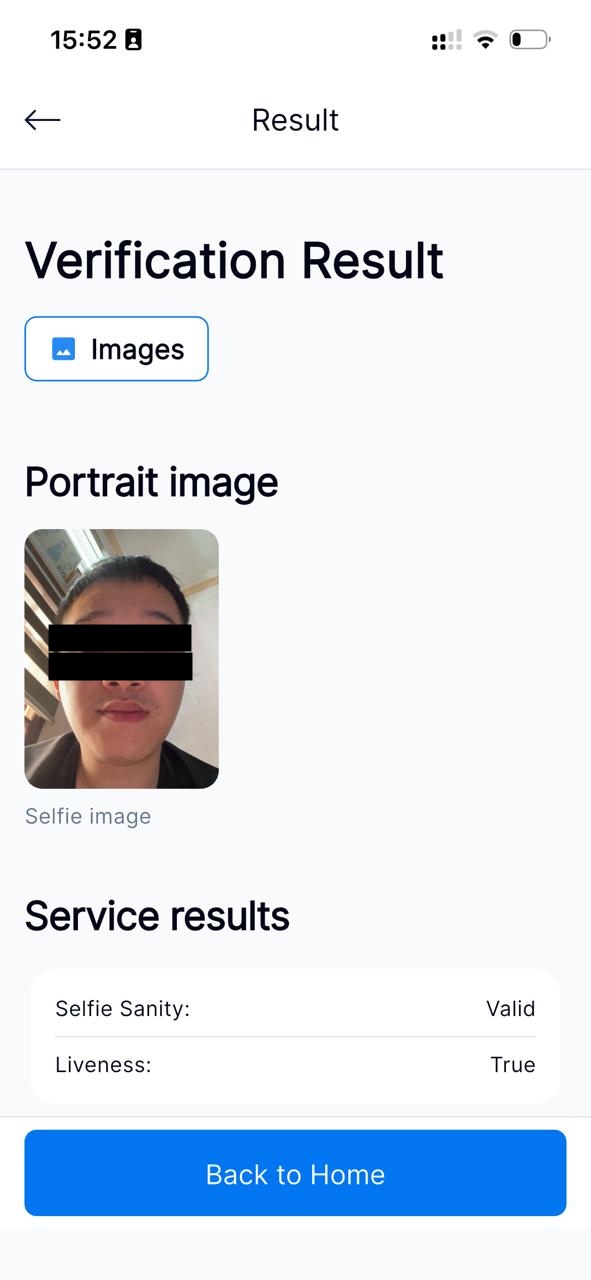
- Verification result — the captured selfie image plus service results, including Selfie Sanity and Liveness status.
ID Card Capturing
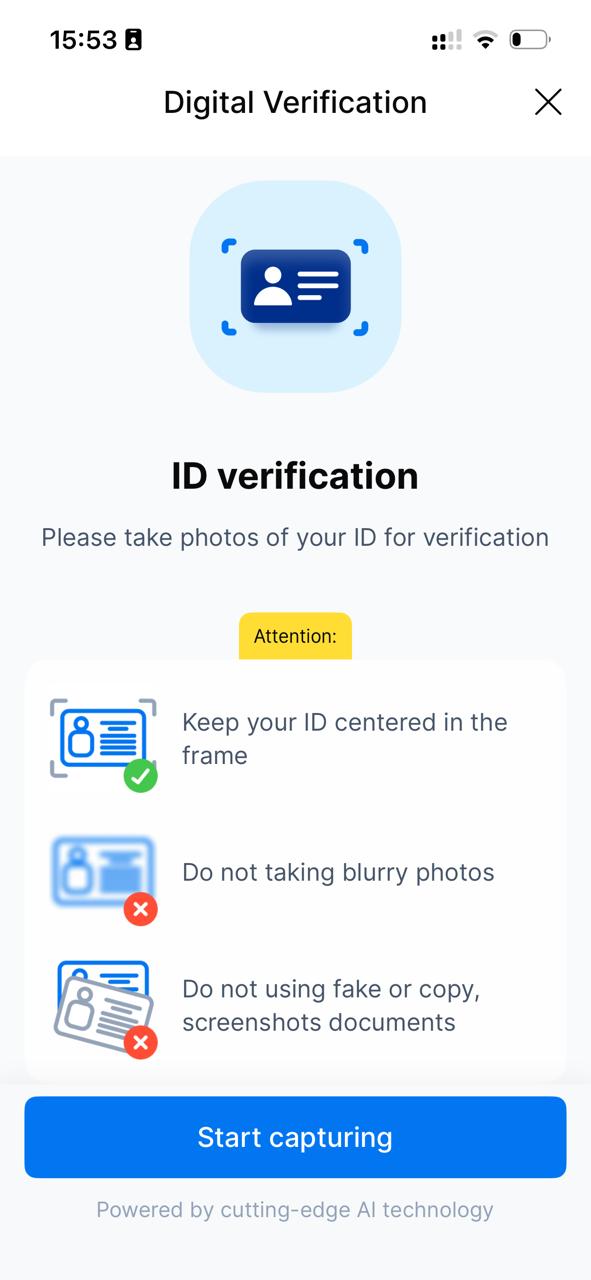
- Capture guidance — on-screen tips before scanning: keep the ID centered in the frame, avoid blurry photos, and don't use fake, copied, or screenshotted documents.
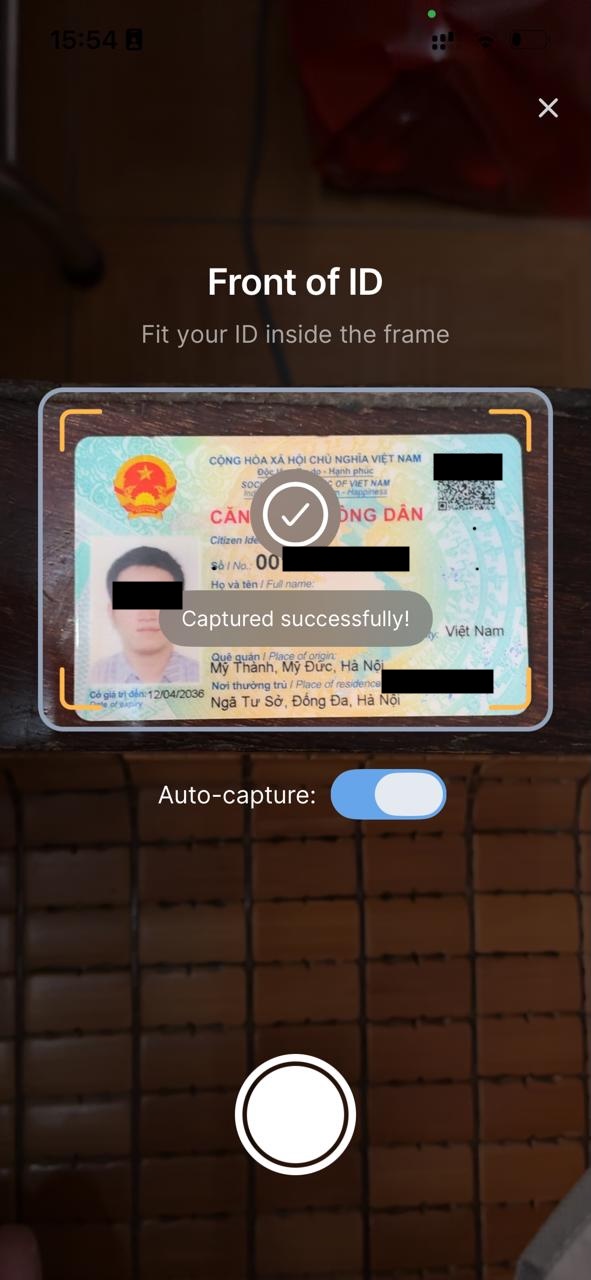
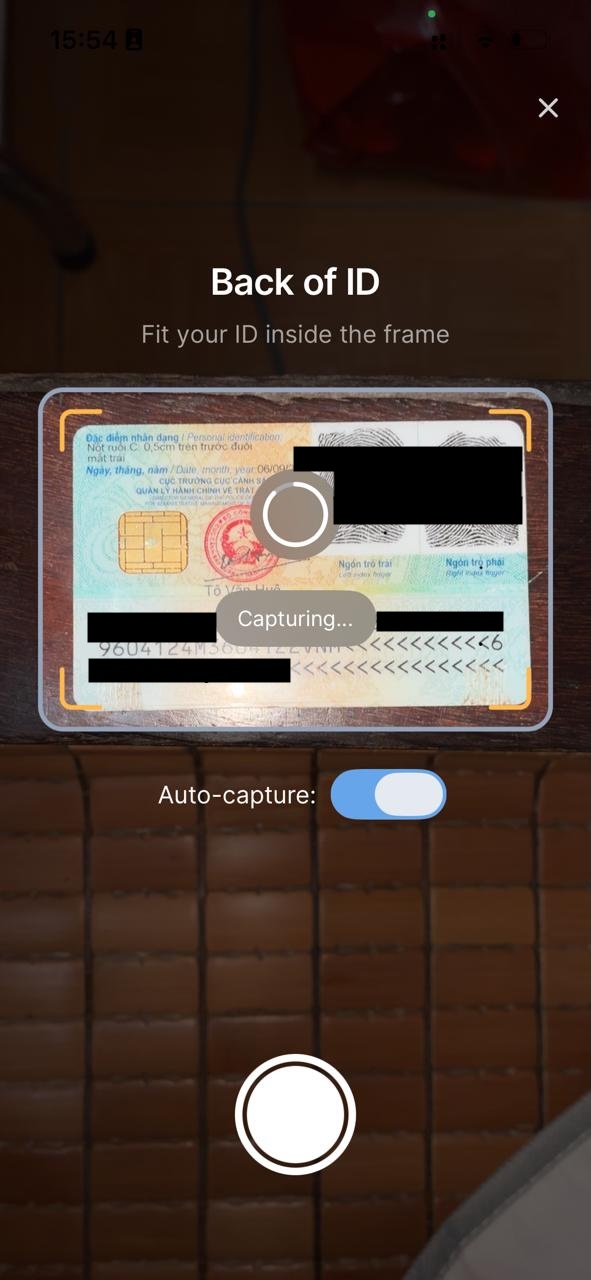
- Front & back capture — dedicated framing for both sides of the ID card, each with its own detection.
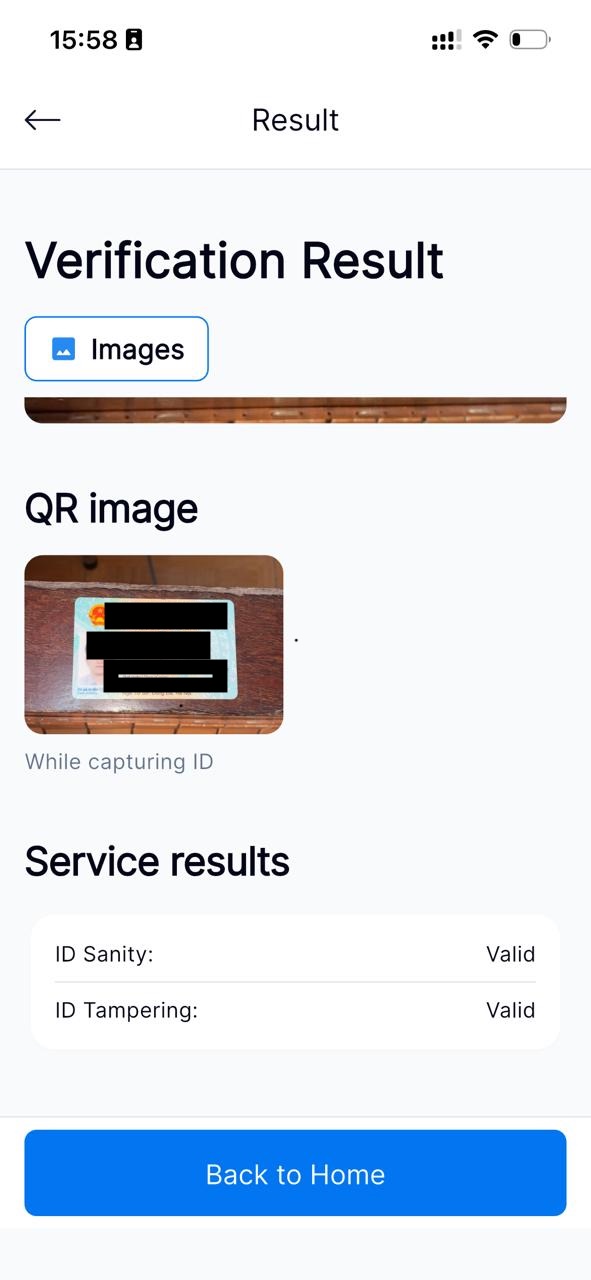
- Verification result — the captured ID image plus service results, including ID Sanity status, ID Tampering status and OCR result.