Applications
What it's for
Applications is your audit trail — a searchable record of every individual applicant who has gone through eKYC verification, Vision Score, or both. When you need to answer "what actually happened for this specific applicant," or when compliance, a customer complaint, or an internal audit requires evidence of what was checked and why a decision was made, this is where you look. Start here whenever a verdict is questioned — the Document Verification and Selfie Verification breakdowns (below) show exactly which individual check drove the outcome, rather than leaving it to guesswork. An overall Rejected verdict with ID Tampering flagged and everything else Good, for example, tells a very different story than one with Compare Face failing.
Everything in this section contains personal data — photographs, extracted ID document data (full name, ID number, date of birth, home address), and biometric liveness/match results — so access should be limited to staff with a legitimate need to review individual cases, and exports handled per your organization's data-handling policy.
What you can see
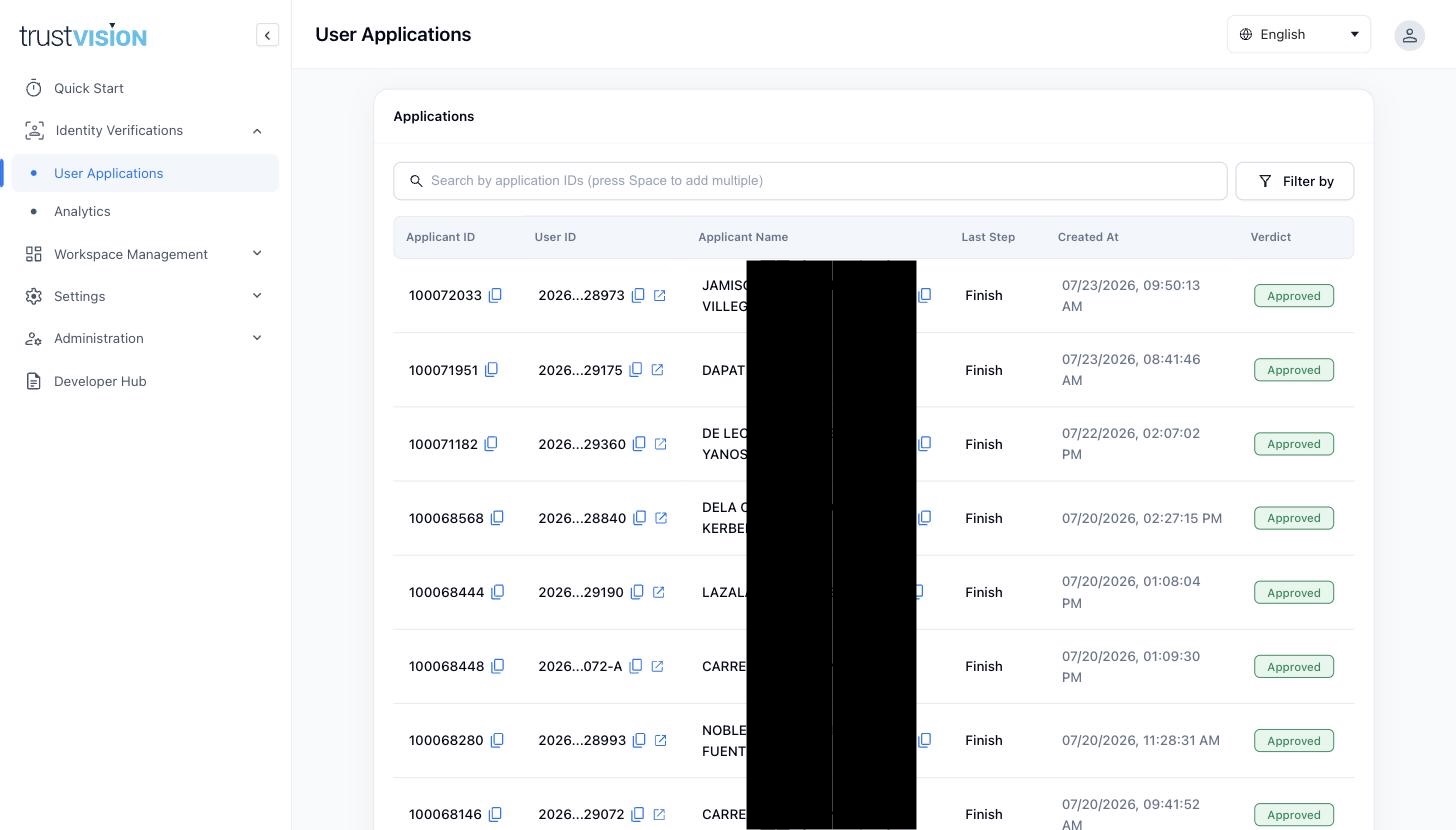
Applications list:
- Applicant ID and User ID — identifiers for the application and the underlying user.
- Applicant Name — captured during the journey, typically from the ID document once Document Verification has run.
- Last Step — where the applicant's journey ended (e.g. "Finish" means they completed the full flow).
- Created At — timestamp.
- Verdict — the final outcome: Approved, Rejected, or Review.
You can search by one or more Application IDs and filter the list to narrow down to a specific channel, date range, or verdict.
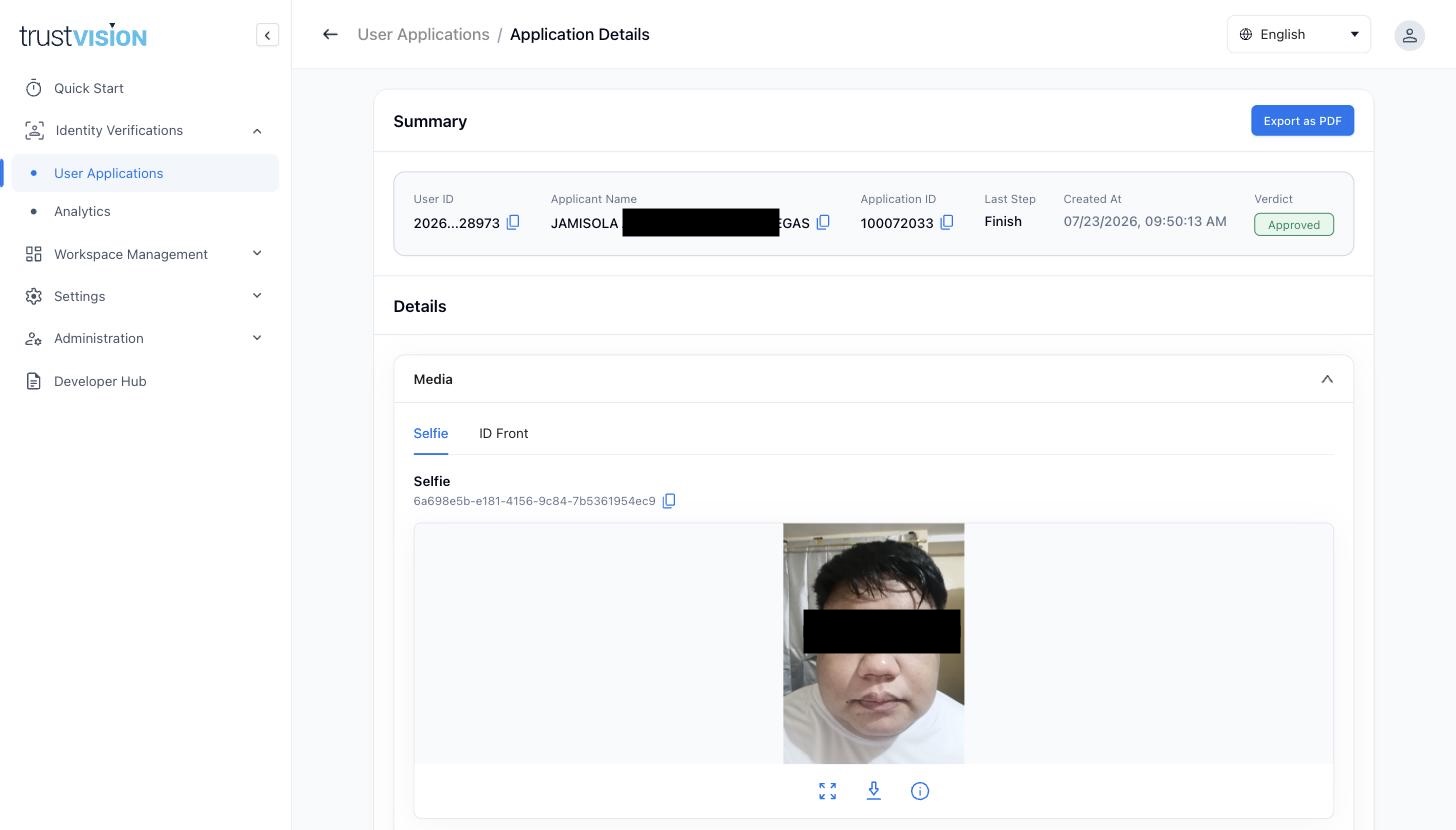
Application Details (click into any application):
- Summary — the same header information as the list, plus a one-click Export as PDF for sharing the record outside the console — with a compliance team, a partner bank, a regulator, or any other non-console stakeholder.

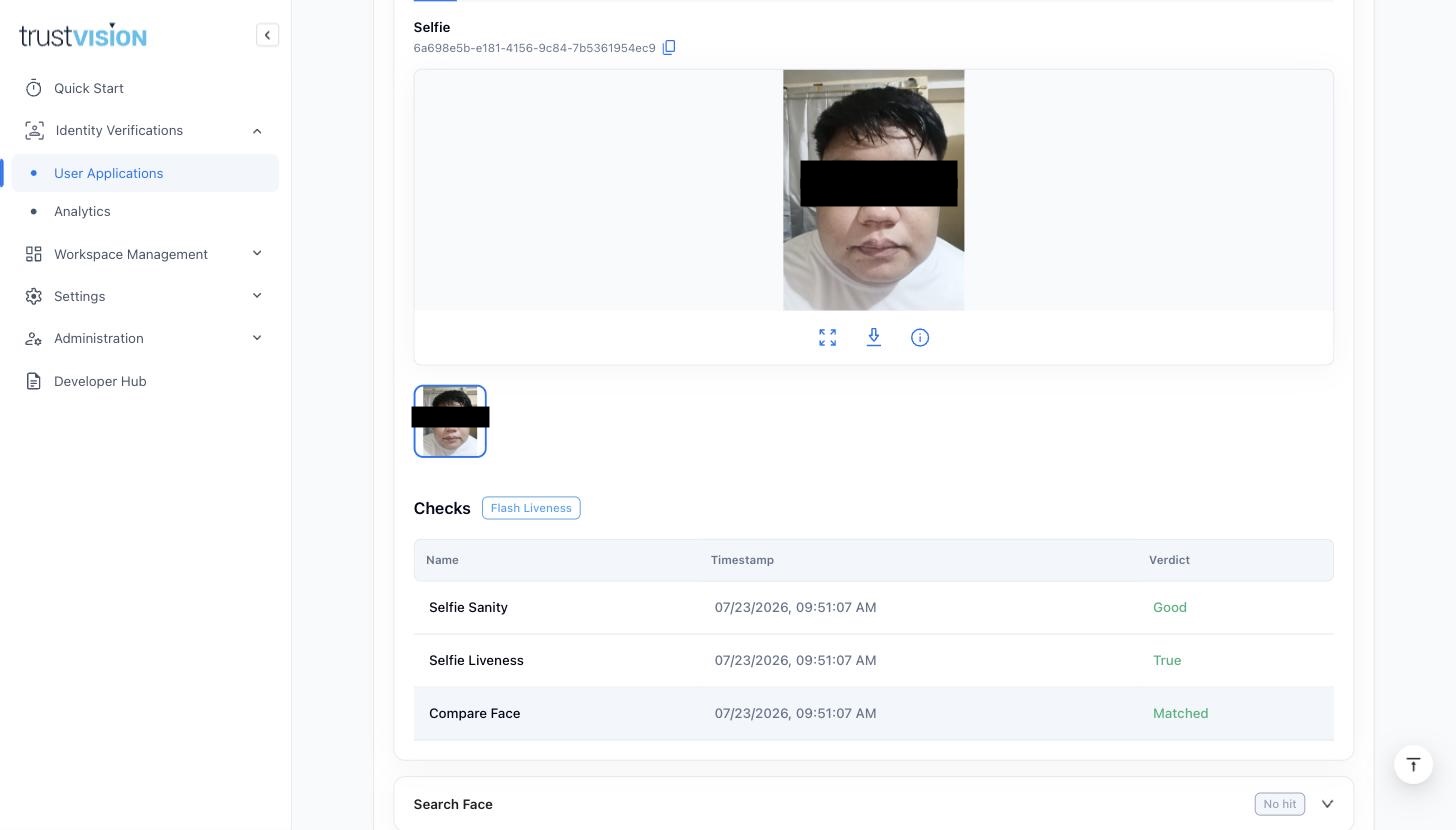
- Media — the applicant's submitted photos, organized into tabs (typically Selfie and, for workflows that include document capture, ID Front). Each image has its own reference ID, and can be enlarged, downloaded, or inspected for capture metadata.
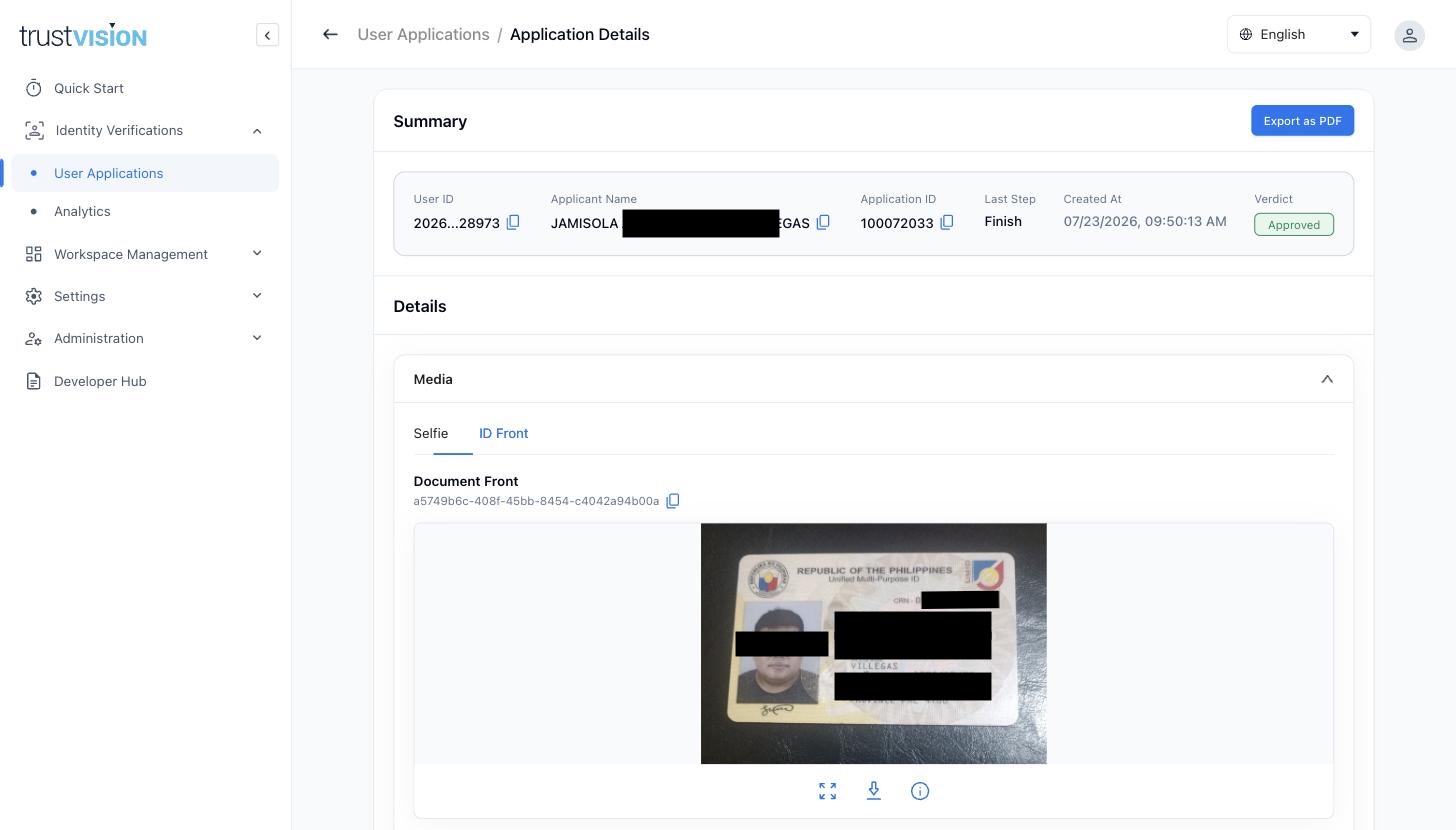
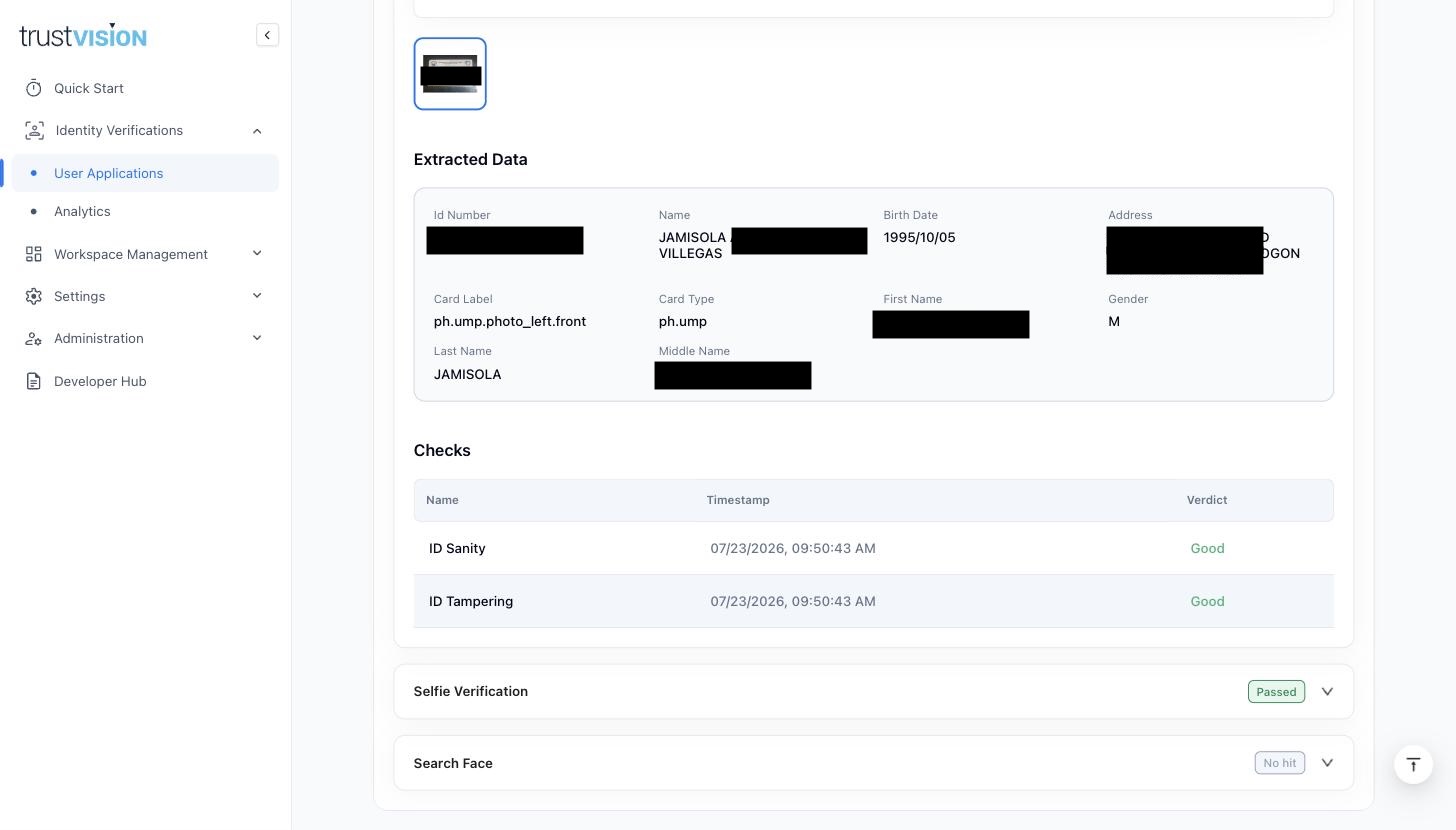
- Document Verification — if the workflow includes ID capture, expanding this section shows:
- Extracted Data — the OCR output read directly off the document: ID number, full name, date of birth, address, gender, and the specific document type recognized (e.g. a Philippines Unified Multi-Purpose ID). This is what the system captured automatically, without manual data entry — it's also the same data that populates Applicant Name and other fields elsewhere in the console, so if a name looks wrong downstream, check here first to see what was actually read off the document.
- Checks — the individual technical tests run against the document, each with a timestamp and verdict: ID Sanity (is this a real, readable, correctly-oriented document) and ID Tampering (has this document been altered or forged).
- Selfie Verification — expanding this section shows which liveness mode ran (e.g. Flash Liveness) and the individual checks: Selfie Sanity (is the image usable), Selfie Liveness (was this a live person, not a photo/replay), and Compare Face (does the selfie match the face on the submitted ID document).
- Vision Score — if the workflow includes scoring, the risk score returned for this applicant, with timestamp.
- Search Face — whether this applicant's face matches anyone already in your database (duplicate/fraud detection). A result of "No hit" means no match was found; investigate every hit, since it's your primary defense against one person opening multiple accounts under different identities, even when the individual verification checks passed.
Related areas
- To understand aggregate trends rather than individual cases, see Vision Score Dashboard and eKYC Dashboard.
- To understand which checks ran for a given application and why, see Workflows (which explains how workflows are configured — e.g. whether QR scanning or face deduplication was enabled).
- For your organization's data retention and deletion controls, see Data & Privacy.