Workflows
What it's for
A Workflow is the ordered sequence of steps your borrowers go through at onboarding — which checks run, and in what order. This is where you define the actual shape of the verification journey: ID capture, selfie liveness, NFC chip verification, a data-entry form, and/or Vision Score, combined in whatever order fits your use case. Workflows are a reusable library — you define them once here, then assign them to one or more Channels.
TrustVision ships a set of pre-built workflows out of the box, including — start from one of these rather than designing from scratch, since they cover the common orderings (ID-first vs. selfie-first, with or without NFC/QR) that fit most onboarding use cases:
| Workflow | Steps |
|---|---|
| ID → NFC → Selfie | Document capture, NFC chip read, selfie liveness |
| Selfie → ID | Selfie liveness first, then document capture |
| ID → Selfie | Document capture, then selfie liveness |
| QR → NFC → Selfie | QR-based document capture, NFC, selfie liveness |
| ID → Form → Selfie | Document capture, data-entry form, selfie liveness |
| ID Verification | Document capture only |
| Vision Score + Sanity + Liveness | Preset with the Vision Score toggle (see below) turned on, plus quality and liveness checks |
| Vision Score Only | Preset with only the Vision Score toggle turned on — no document/selfie verification steps |
Vision Score itself is not a distinct workflow mechanism — it's the same Vision Score toggle described under "What you can configure per workflow" below. "Vision Score + Sanity + Liveness" and "Vision Score Only" are just pre-built presets that ship with that toggle already enabled, so you can start scoring applicants immediately without assembling a workflow from scratch. Turning the toggle on inside any other workflow (e.g. "ID → NFC → Selfie") has the same effect as picking one of these two presets and adding the rest of that workflow's steps around it.
Each pre-built workflow corresponds to a flow_id at the API level — see Integrate with your platform for the full list.
What you can configure per workflow
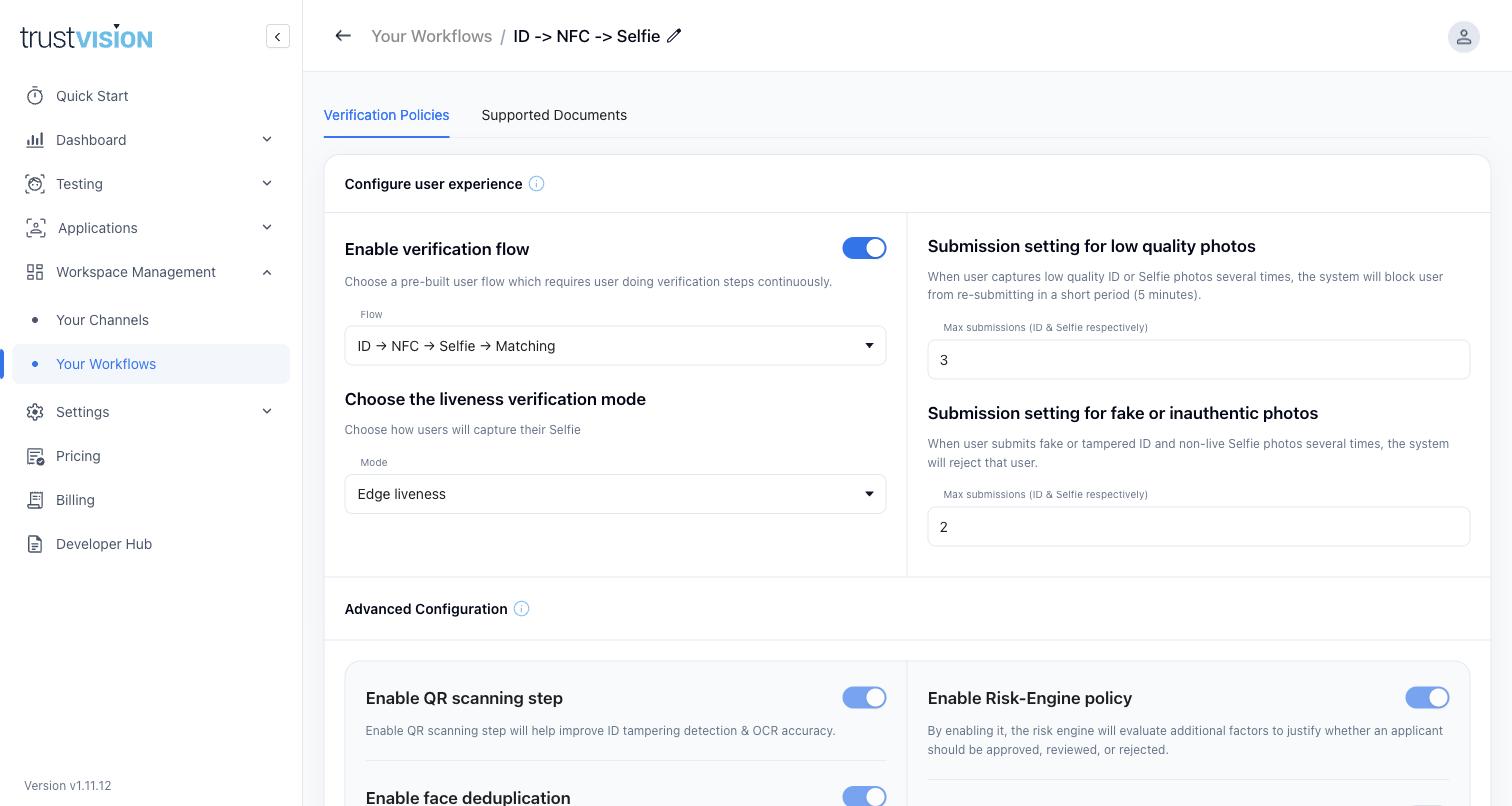
Verification Policies:
- Liveness verification mode — how users capture their selfie (e.g. "Edge liveness," which runs the liveness check on the applicant's device before submission).
- Submission limits for low-quality photos — after a configurable number of low-quality ID or selfie submissions, the system temporarily blocks re-submission (default: a short cooldown period) to discourage abuse and give applicants a moment to retry properly.
- Submission limits for fake/inauthentic photos — after a configurable number of tampered-document or non-live-selfie submissions, the system rejects the applicant outright. This is a core anti-fraud control: it stops repeated fraud attempts rather than letting an applicant keep trying until something slips through. Enable this and face deduplication by default for any customer-facing onboarding flow; disable only with a specific business reason to allow retries indefinitely.
- QR scanning — enabling QR capture on supported documents improves tamper detection and OCR (text extraction) accuracy.
- Face deduplication — checks whether an applicant has already onboarded before under a different application, flagging repeat/multi-identity attempts.
- Risk-Engine policy — when enabled, an additional risk-scoring layer evaluates supplementary factors to help decide whether an applicant should be approved, sent to manual review, or rejected — beyond the pass/fail result of individual checks.
- Vision Score — can be turned on within any eKYC workflow, so a Vision Score is requested for every applicant's selfie during onboarding, without needing a separate integration.
Supported Documents — a per-workflow, per-country list of which ID document types are accepted (e.g. national ID, passport, driver's license), each individually toggled on or off. TrustVision supports a broad range of document types across Vietnam, India, and the Philippines, plus a generic Global Passport option, with more markets available on request. Only enable document types you're actually prepared to process — unused document types invite edge cases in support and fraud review.
If your onboarding funnel (see eKYC Dashboard) shows high drop-off at a specific step, this is usually the first place to investigate — for example, whether the liveness mode is too strict for typical applicant devices.
Related areas
- To see which channel each workflow is assigned to, see Channels.
- To see how workflow configuration choices show up in funnel and rejection-reason data, see eKYC Dashboard.
- To review a specific applicant's outcome against a specific workflow's checks, see Applications.
- For the
flow_idvalues behind each pre-built workflow, see Integrate with your platform.