Login & Account Access
Before reaching Quick Start or any other part of Trust Central, every user signs in with the individual credentials TrustVision or your account administrator issued them (see Users for how those accounts are created and managed). This page covers the two screens involved in getting in: signing in, and recovering access if a password is forgotten.
Signing in
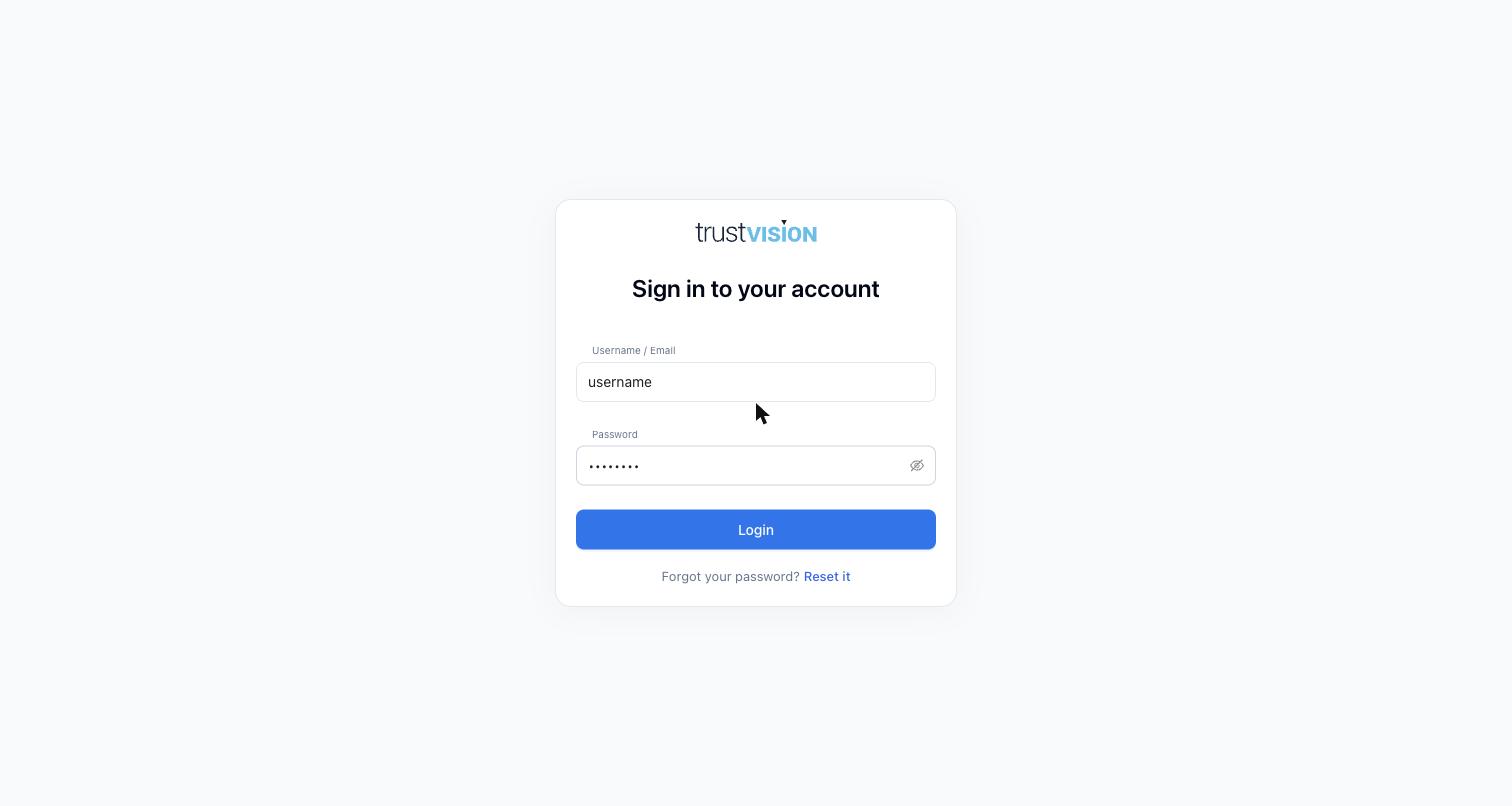
Sign-in requires a Username/Email and Password. There's no separate organization/tenant selector — your account is tied to the credentials themselves, so each person on your team should have their own login rather than a shared one. This also keeps the audit trail in Applications and elsewhere meaningful — actions are tied to a real person, not a generic shared account.
Resetting a forgotten password
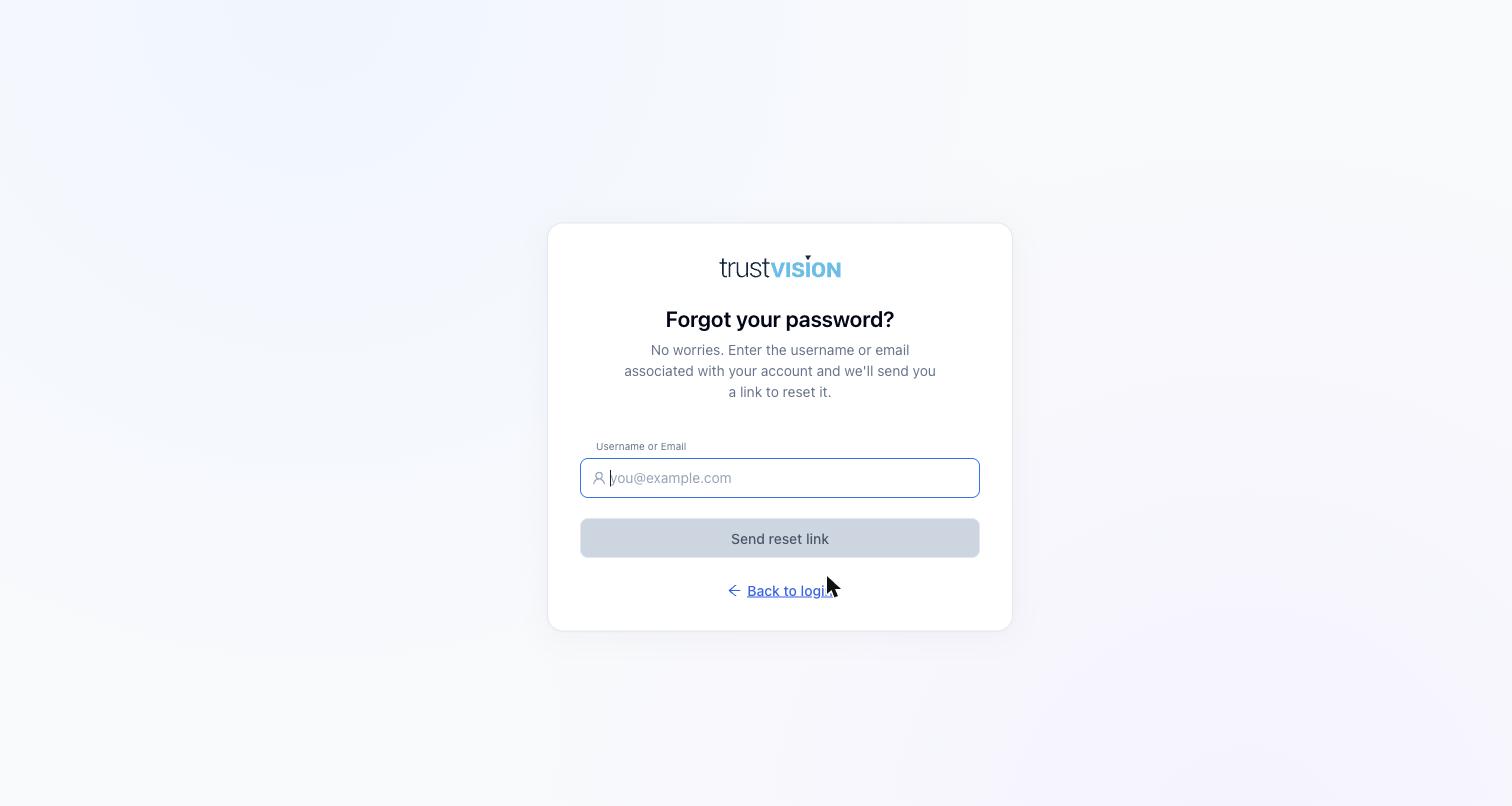
Clicking Reset it next to "Forgot your password?" on the login screen takes you to a simple recovery flow: enter the username or email on the account, and a reset link is sent to it. If someone on your team can't log in, this is almost always the first troubleshooting step — most access issues are a forgotten password, not an account problem. If a reset email never arrives, check that the account is still Active (see Users) before escalating — a deactivated account won't receive reset emails and needs an admin to reactivate it, not a password reset.
Because there's no shared login, when someone leaves your organization the correct action is to deactivate their individual account rather than change a shared password — shared credentials would break the audit trail this whole console is designed to preserve.
Related areas
- For how accounts are created, assigned roles, and deactivated, see Users.
- For what a signed-in user sees immediately after logging in, see Quick Start.