Lists
Lists hold the entities you already know something about — trusted customers, mule beneficiaries, blocked devices, restricted IP addresses, sanctioned or politically exposed persons. Rules reference lists so that one update to a list immediately changes how every dependent rule behaves, without editing the rule itself.
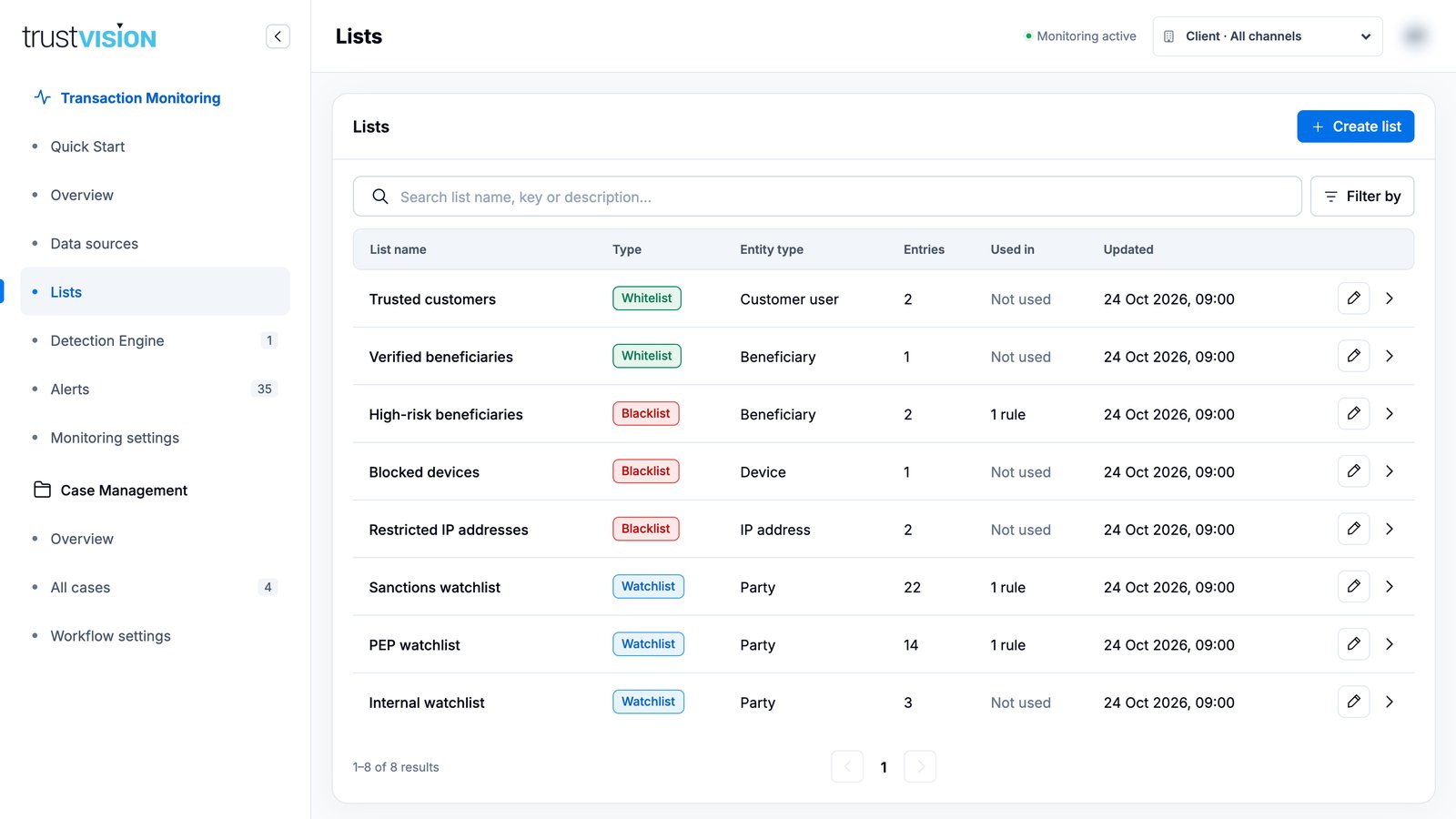
What it's for
| List type | Purpose | Example |
|---|---|---|
| Whitelist | Entities you trust; rules can skip or soften checks for them. | Trusted customers, Verified beneficiaries |
| Blacklist | Entities you want to stop or review every time. | High-risk beneficiaries, Blocked devices, Restricted IP addresses |
| Watchlist | People screened by name with fuzzy matching (PEP, sanctions, internal). | Sanctions watchlist, PEP watchlist |
Each list holds one entity type: Customer user, Beneficiary, Device, IP address or Party (for watchlists).
What you can see
- Table — list name, type, entity type, entries, how many rules use it (Used in), and last update. Open Filter by to filter by Type and Entity, or search by name, key or description. A conflicting entries note appears above the table when the same value is in both a whitelist and a blacklist.
Click a row to open the list.
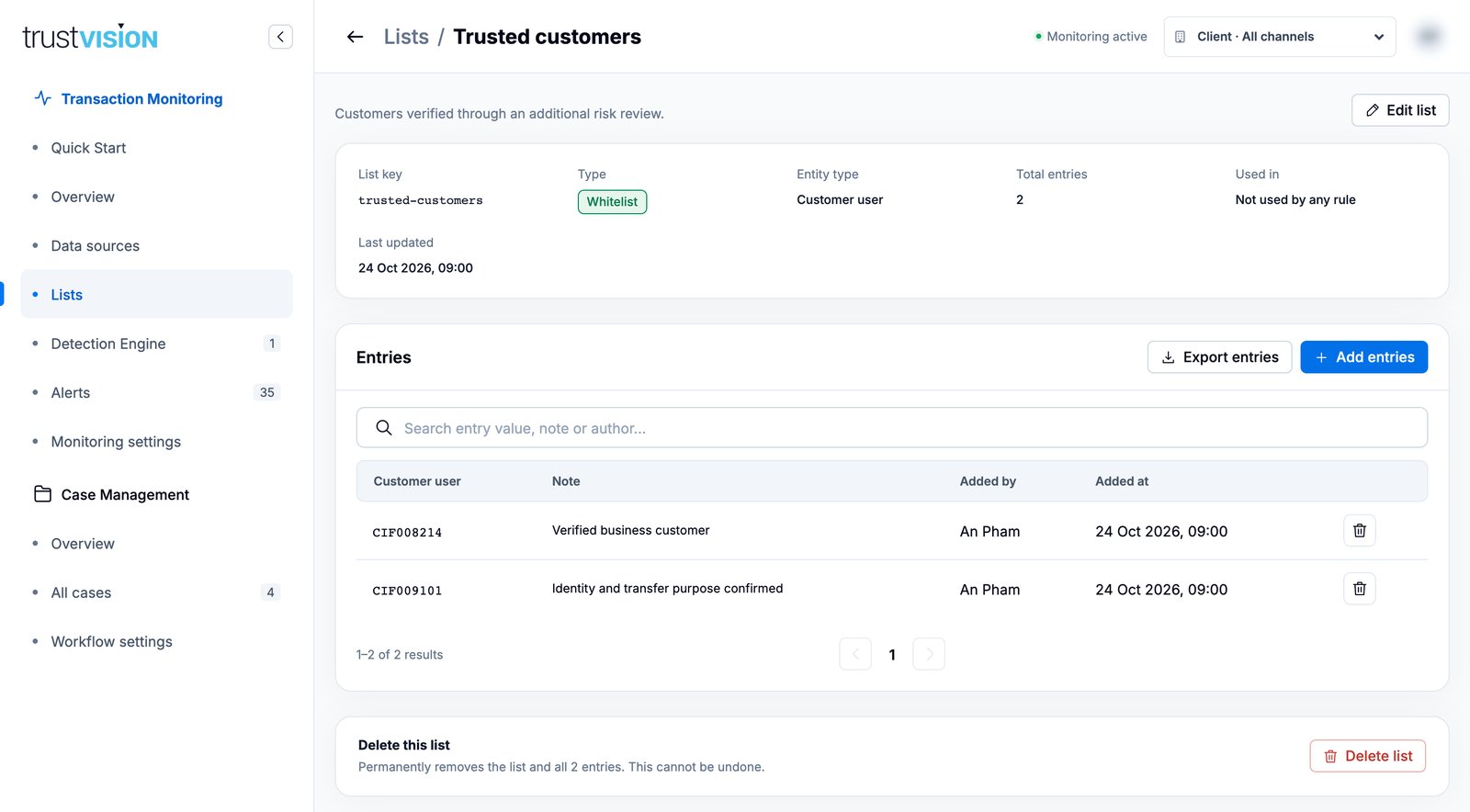
The detail view shows the list key (the identifier rules use), type, entity type, entry count and the rules that reference it, followed by the entries with their note, author and time added.
Provider-fed watchlists (for example Dow Jones PEP and sanctions) also show the feed version and a Sync now action, plus a Test screening panel where you can enter a name, date of birth, country and ID number to see what would match.
What you can configure
Create a list
- Click Create list.
- Enter the List name, a unique List key and a Description.
- Choose the List type and the Entity type.
- Click Create list. The list is empty and ready for entries.
Add entries
- Open the list and click Add entries.
- Enter one value per line. For watchlists, use one record per line:
Name | Date of birth (YYYY-MM-DD) | Country | ID number | Aliases separated by ;— only the name is required. - Add an optional Note to explain why these entries were added.
- Save.
Validation rules:
- Duplicate values within the same list are rejected.
- IP address lists accept valid IPv4 and IPv6 addresses only.
- The entity type is locked while the list has entries. Empty the list first if you need to change it.
Remove entries, export, delete
- Click the bin icon on an entry to remove it (you will be asked to confirm).
- Export entries downloads the list.
- Delete list (bottom of the page) asks for confirmation. A list that is still used by a rule cannot be deleted — remove it from the rule first.
Always add a Note when adding entries (case ID, investigation reference). It is shown next to each entry and makes later clean-up much easier.
Related areas
- To reference a list in a condition, see Detection rules.
- To see watchlist match details on an alert, see Alerts.