Data sources
A data source is a stream of events your platform sends to TrustVision. Its fields are the building blocks of every rule condition, so this page is where you confirm what data is available, which fields contain personal data, and which rules depend on each field.
What you can see
The landing page lists each source as a card, with its input type, field count and number of PII fields.
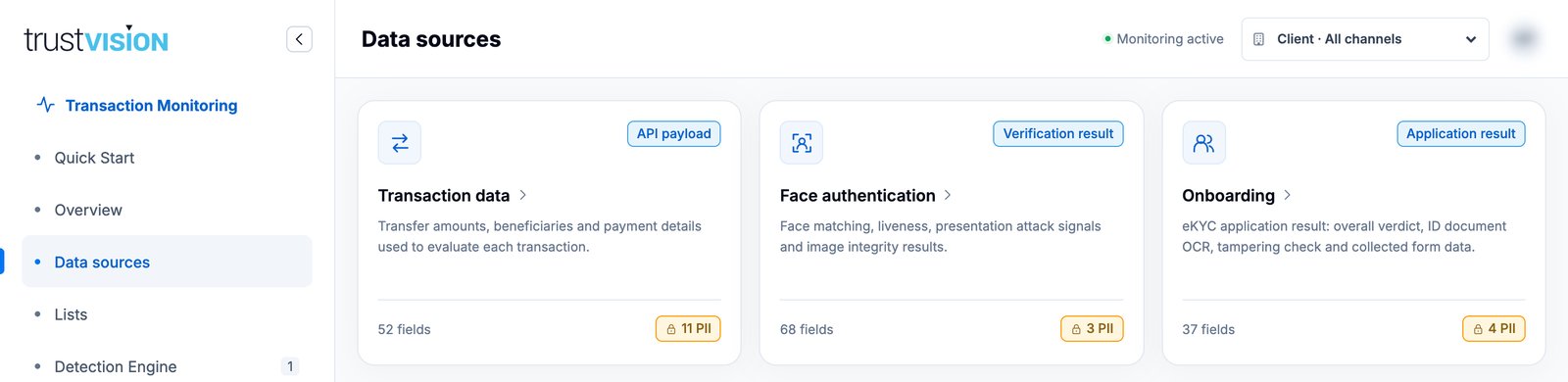
| Data source | Input type | Typical content |
|---|---|---|
| Transaction data | API payload | Transfer amount, beneficiary, device, channel and payment details for each transaction. |
| Face authentication | Verification result | Face match score, liveness, presentation-attack and image-integrity signals. |
| Onboarding | Application result | eKYC verdict, ID document OCR, tampering checks and collected form data. |
Click a card to open the source. The detail view has three tabs.
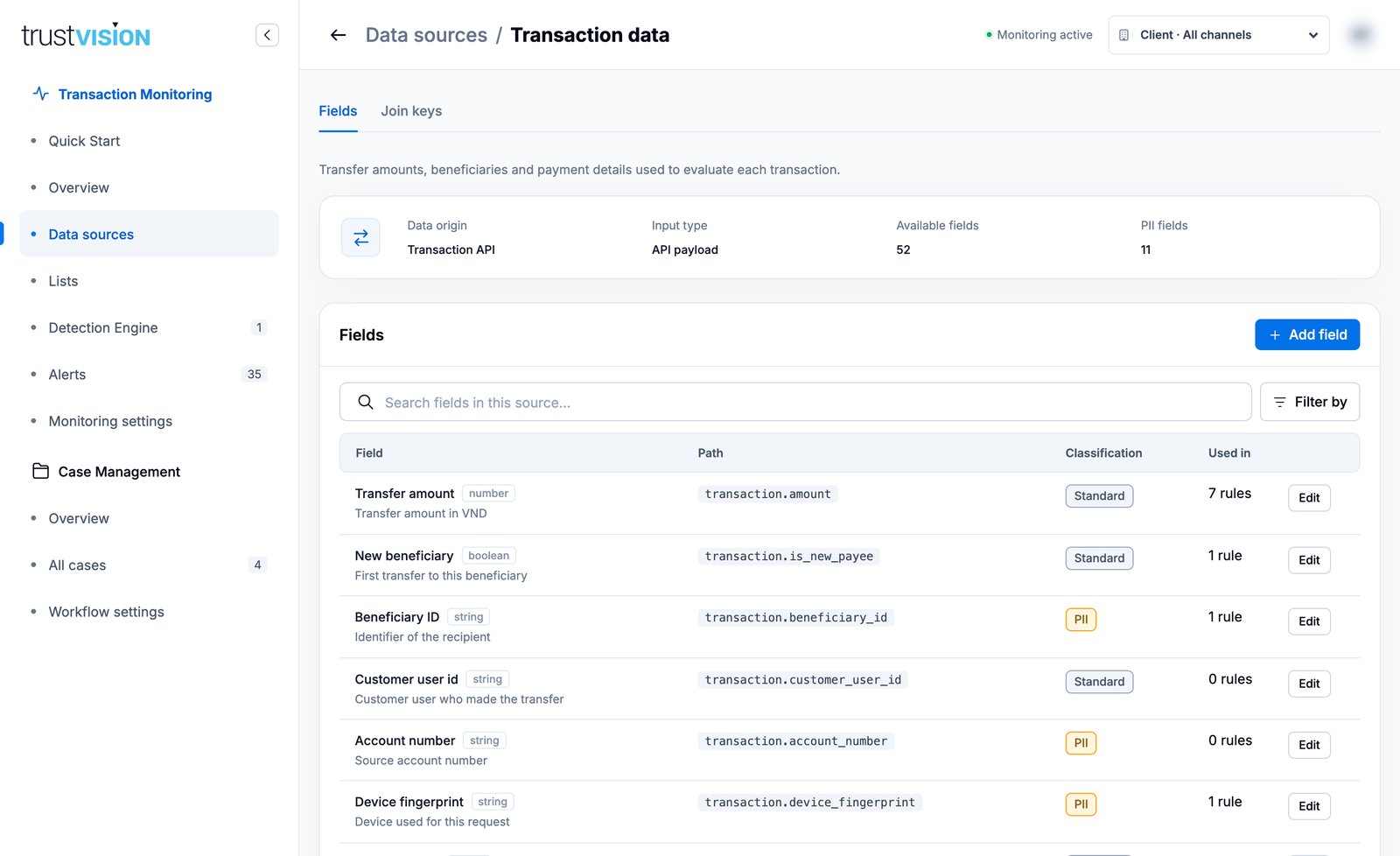
Fields
Each row shows:
- Field — display name, data type (number, boolean, string, …) and description.
- Path — the dot-separated path in the event payload, for example
transaction.amount. This is what you reference in an advanced expression. - Classification — Standard or PII. PII fields hold personal data and should be used only where necessary. You can send PII values encrypted, as long as the encryption keeps each value unique, so that rules, lists and aggregate grouping can still tell one entity from another.
- Used in — how many rules reference the field.
Use Search fields in this source to find a field, and Filter by → Show withdrawn fields to include fields that are no longer offered. Use the back arrow in the top bar to return to Data sources.
What you can configure
Add or edit a field
- Open the source and click Add field (or Edit on an existing row).
- Enter the Field name shown to analysts, a unique Field path, the data type and an optional Description.
- Tick Contains personally identifiable information (PII) if the field holds personal data.
- Click Save field.
Withdraw a field
Open the field and click Withdraw field. The field disappears from the rule builder, but existing rule versions keep their reference so live rules are not broken. Before anyone submits a new version of such a rule, the withdrawn field must be replaced. Use Restore field to bring it back.
Check Used in before withdrawing a field. The rules listed there will need an update the next time they are edited.
Related areas
- To use these fields in conditions, see Detection rules.
- To compare field values against curated entity lists, see Lists.