Detection rules
The Detection Engine is where you define what "suspicious" means for your business. Rules combine data-source fields, lists and thresholds into conditions, and decide what happens when an event matches. Every rule version goes through maker–checker approval, and new rules can run silently in Shadow mode before they affect customers.
The page has four tabs: Realtime, Aggregate, AI Models and Library. This page covers the two rule tabs and the rule library.
Realtime vs. aggregate rules
| Realtime rule | Aggregate rule | |
|---|---|---|
| When it runs | On every event, before a decision is returned | On a schedule (for example every 24 hours) over a lookback window |
| Typical use | Large transfer after SIM swap, mule beneficiary, failed face match | Burst of failed sign-ins, many new devices, sudden growth in volume |
| Possible actions | Review (hold for analyst), Reject transaction, Approve transaction | Create post-check alert |
| Case created (Enforce) | Hold case with SLA | Post-check case |
What you can see
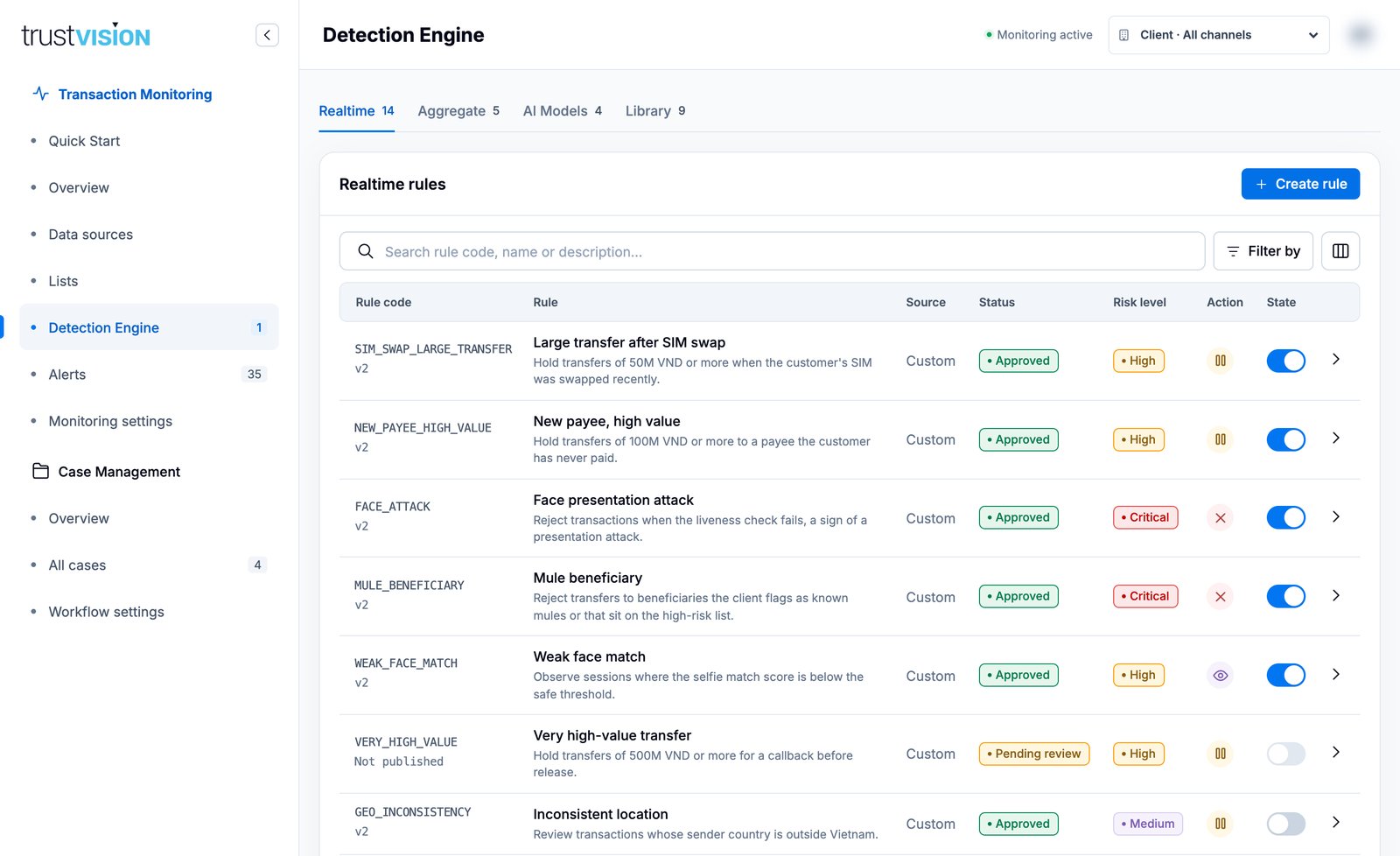
- Rule code and active version (or Not published for a rule that has never been approved).
- Rule name and description. A Shadow tag marks rules in Shadow mode.
- Source — Custom for rules you wrote, Cloned (with the template it came from) or a Built-in badge for rules from the rule library.
- Status — Approved, Pending review (a version is waiting for a checker) or Change rejected.
- Risk level and Action — shown as an icon: pause for Review (hold), cross for Reject, check for Approve, eye for Shadow rules. Hover an icon for its meaning.
- State — the on/off toggle. Switching a rule on or off asks for confirmation.
Open Filter by to filter by Risk, Action, Mode, State and Status, or search by code, name or description. The counter next to Detection Engine in the sidebar shows how many versions are waiting for review.
Click a row to open the rule panel. It shows risk, action, mode, active version, state and today's hits; a plain-language How this rule works summary; the Versions history with reviewers and notes.
What you can configure
Create or edit a rule
- Click Create rule (or Edit rule in a rule's panel).
- Choose the Rule type: Realtime or Aggregate.
- Under Rule details, enter a Rule name, a Rule code (A–Z, numbers and underscores; cannot be changed later) and a description.
- Under Detection & response:
- Select the Data source.
- Build the Match conditions (see below).
- Set the Response: Risk level (Critical, High, Medium, Low) and Action.
- Optionally set a Case title template. Placeholders
{amount},{channel}and{alerts}are filled in automatically; leave it empty to use the rule name. - Choose the Rollout: Shadow mode or Enforce, and whether to Activate after approval.
- Write a Note to the reviewer (required) in the right-hand panel, then click Review & submit and Submit for review.
The Rule summary on the right updates as you edit, so you can check evaluation type, source, risk, mode and action before submitting.
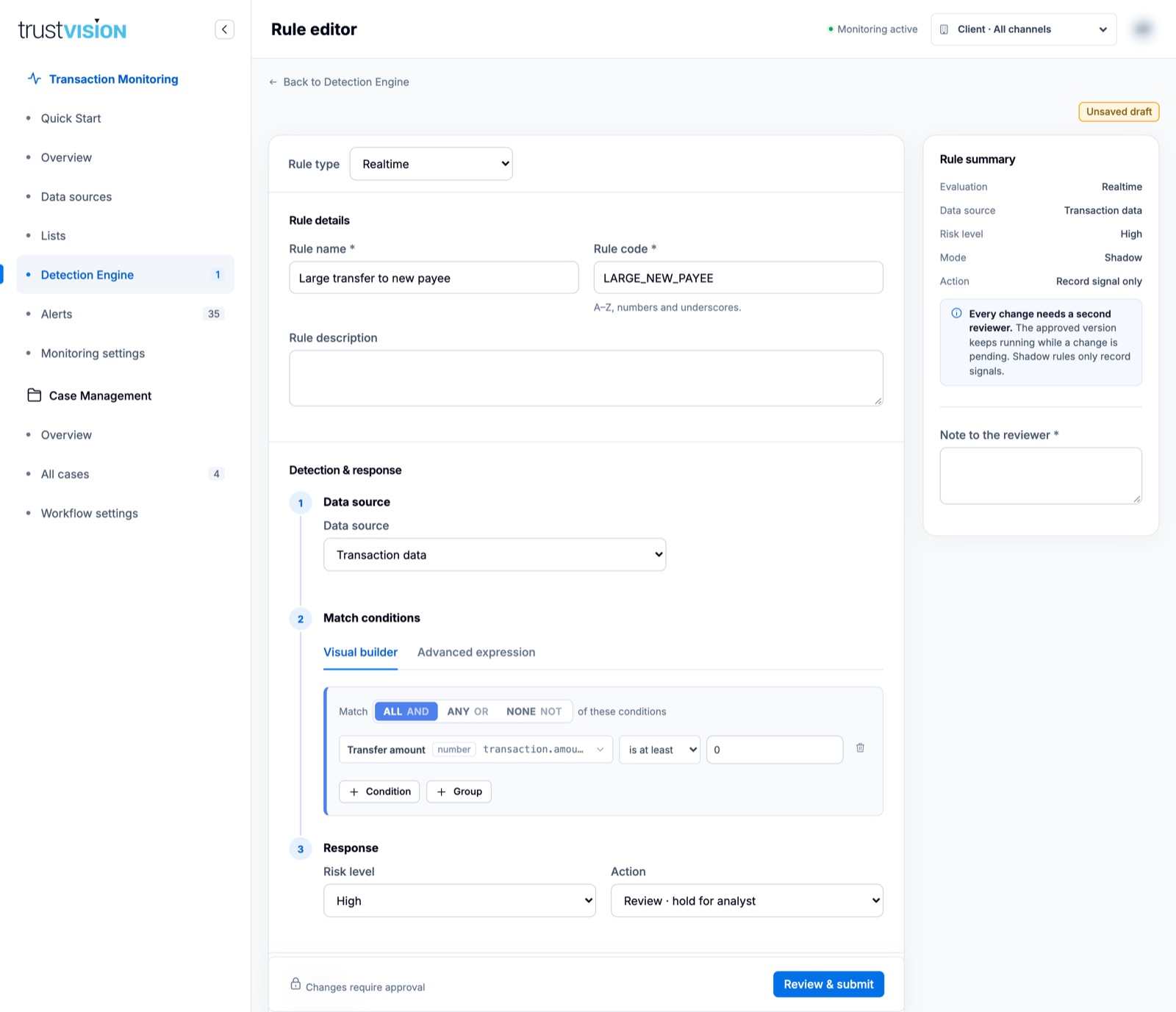
Visual builder
- Choose how conditions combine: ALL (AND), ANY (OR) or NONE (NOT).
- Each condition is field · operator · value, for example
Transfer amountis at least50,000,000. - + Condition adds a line; + Group adds a nested group with its own ALL / ANY / NONE logic.
- Fields show their data type, so only operators that make sense for that type are offered.
- Aggregate rules only: + Join adds a Join block beside the main block, with conditions on another data source that shares a join key with the rule's source. Join blocks are always combined with the main block using AND, and each has its own ALL / ANY / NONE logic. You can add up to 3 joins.
- While you are creating a rule you can switch to Advanced expression, but not back. Once a rule is saved it keeps its format: a rule built visually cannot be edited as text, and a rule written as an expression cannot be opened in the visual builder.
Advanced expression
Switch to Advanced expression to write the condition as text, using field paths exactly as shown on the data source.
| Purpose | Operators | Example |
|---|---|---|
| Combine | and or not ( ) (&& \|\| ! also work) | transaction.amount >= 20000000 and (face_auth.result != "matched" or transaction.is_new_payee == true) |
| Compare | == != > >= < <= | transaction.amount >= 20000000 |
| Fixed set | in not in | face_auth.result in ["unmatched", "not_live"] |
| List lookup | inList(field, "list-key") (use not inList(...) for the opposite) | inList(transaction.beneficiary_id, "high-risk-beneficiaries") |
| Text | contains not contains startsWith endsWith matches (regex); case-insensitive equalsIC(field, "…") containsIC startsWithIC endsWithIC | transaction.sender_country startsWith "V" |
| Empty values | == nil != nil == "" | onboarding.ekyc_ocr.card_info.converted_card_info.name != nil |
| Name screening | fuzzy(field, "…", 0–1) (default threshold 0.8; ignores accents, case and word order) | fuzzy(onboarding.ekyc_ocr.card_info.converted_card_info.name, "Nguyen Van An", 0.85) |
Expressions use expr-lang syntax. Older upper-case expressions (AND, =, IN_LIST …) are converted automatically.
On a watchlist, inList matches the name fuzzily and refines the match with date of birth, country and ID number.
The editor helps you as you type: browse and insert field paths, open the syntax guide and click an example to insert it at the cursor, and use Undo / Redo. The expression is validated before you can submit.
Aggregate settings
For aggregate rules, the detection section has four steps.
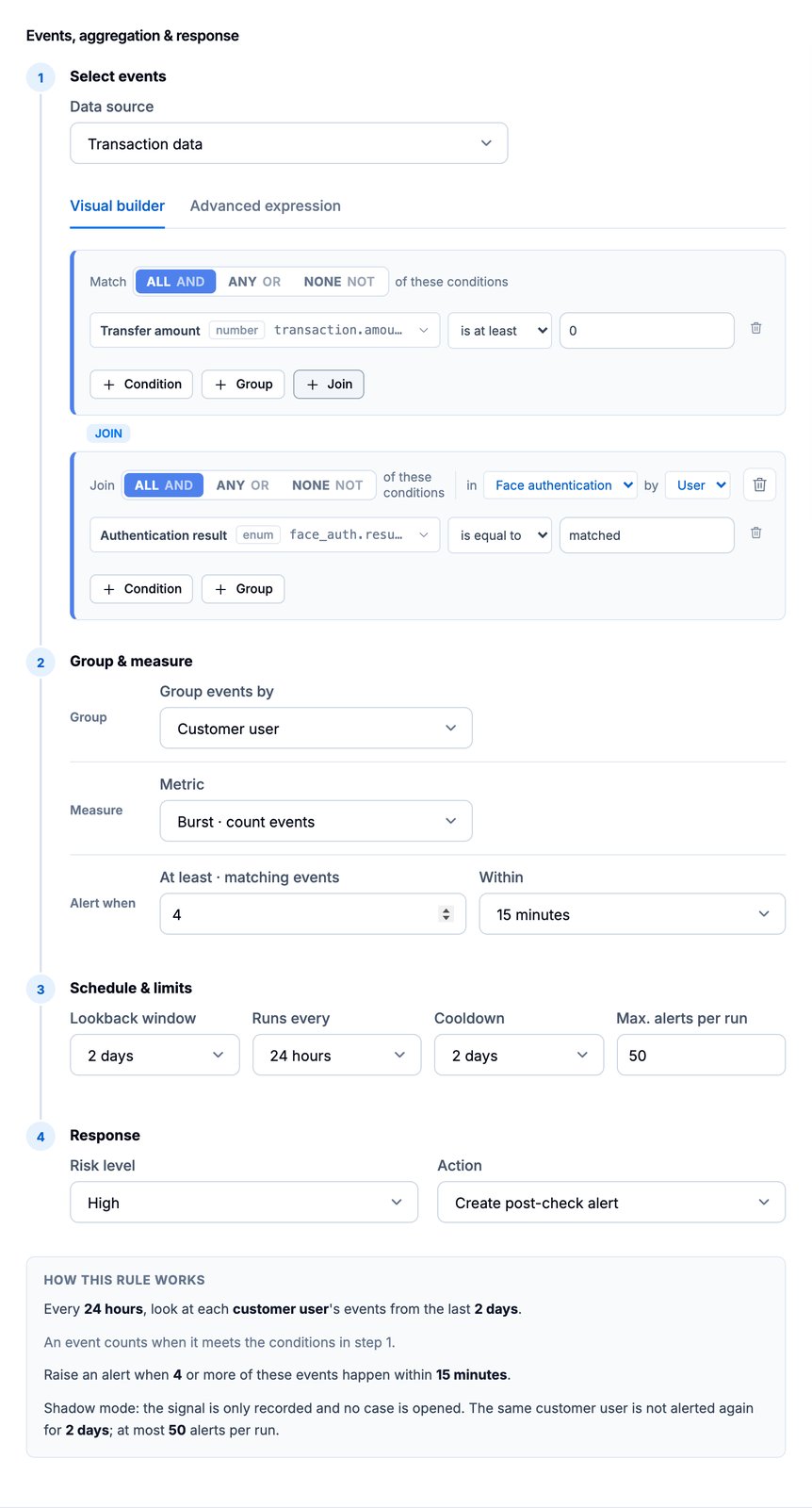
- Select events — data source and conditions that decide which events count.
- Group & measure
- Group events by: Customer user, Device, Customer user + device or a Field value.
- Metric: Burst (count events), Rate (% of events matching), Distinct (different values), Duplicate (repeated value), Change (growth vs. previous period), Switch (value changes between events) or Stall (clock moves, counter does not).
- Alert when: the threshold and the time frame (5 minutes to 7 days).
- Schedule & limits — Lookback window, Runs every, Cooldown (no repeat alert for the same entity during this time) and Max. alerts per run.
- Response — risk level; the action is always Create post-check alert.
The How this rule works box restates your settings in plain language. Read it before submitting — it is the fastest way to catch a wrong window or threshold.
Shadow mode and Enforce
- Shadow mode records an alert when the rule matches, but creates no case and has no effect on the verdict. It is recommended for every new rule so you can measure hit volume and false positives first.
- Enforce applies the rule's action and routes alerts to cases.
Run a new rule in Shadow mode for at least one full business cycle, check its hits in Rule effectiveness, then submit a new version in Enforce.
Approval (maker–checker)
Every new rule and every change creates a version that must be approved by a second person.
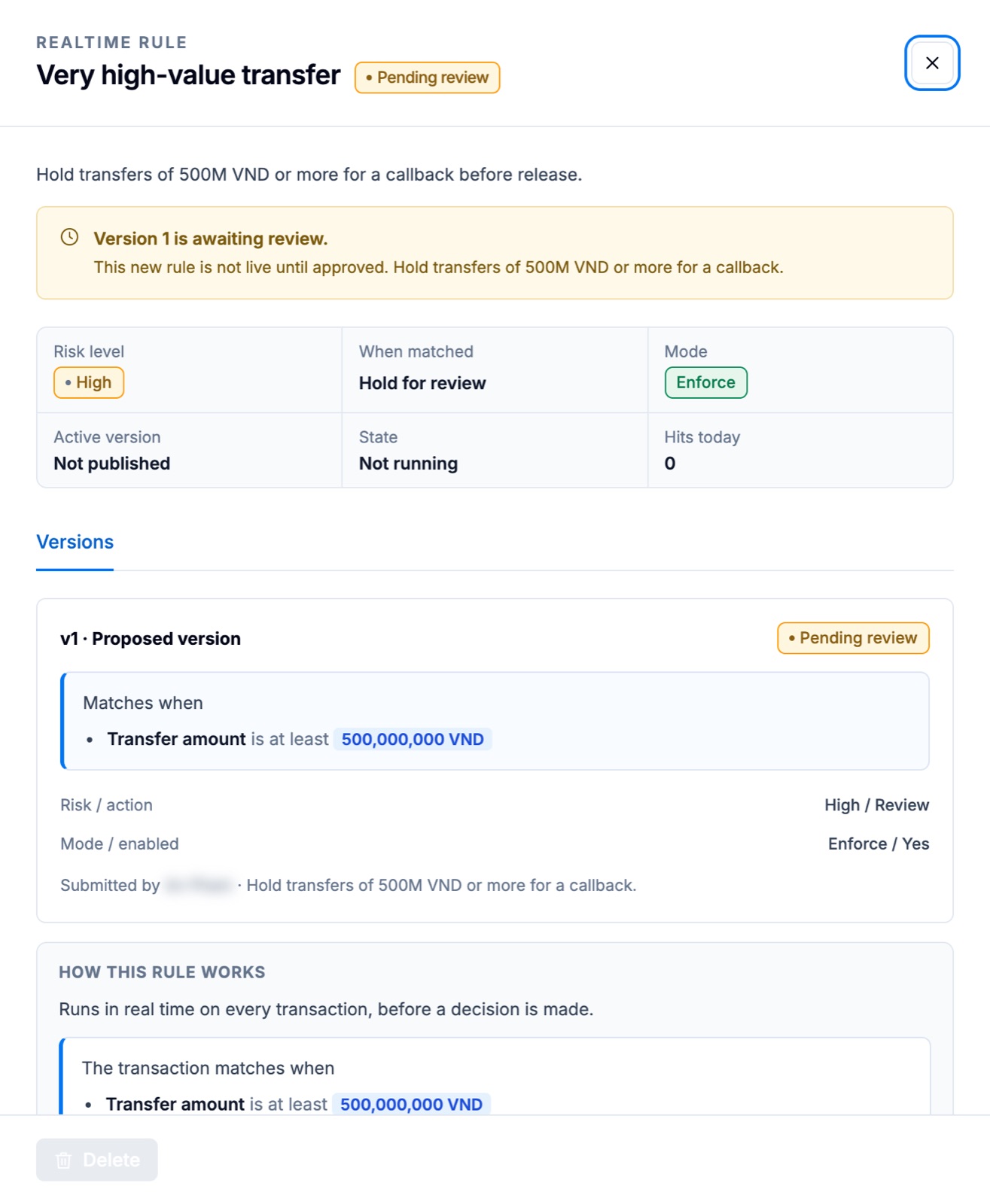
- While a version is Pending review, the currently active version keeps running unchanged. A brand-new rule is not live until approved.
- The author cannot approve their own version.
- The approver opens the rule and chooses Approve version or Reject change. A rejection requires feedback; the active version stays in place and the feedback is stored in the version history.
If a rule references a withdrawn field, the field must be replaced before a new version can be submitted.
Rule library
The Library tab holds ready-made rules curated by TrustVision, so you do not start from a blank editor. Each template has a code, a description, a market (for example VN or Generic), a risk level and a version with a changelog. Nothing in the library is active for you until you add it.
Search by code, name or description, or filter by Market and Type. Click a template to see what it catches, how it works in plain language, and its version history. The In your rules column shows whether you already use it.
There are two ways to use a template:
| Clone | Enable as built-in | |
|---|---|---|
| Who owns the logic | You | TrustVision |
| Edit the logic | Yes, in the full rule editor | No, read-only |
| Where it appears | Your Realtime or Aggregate rules, as an ordinary rule with its own new rule code | Your Realtime or Aggregate rules, with a Built-in badge and the template's rule code |
| Approval | Like any rule: needs a second reviewer before it goes live | Starts in Shadow straight away; moving to Enforce needs a second reviewer |
| Library updates | Never change your copy | Managed by TrustVision |
Clone
- Open a template and click Clone. The rule editor opens, pre-filled with an exact copy of the template. The name ends in (copy) and the rule code is new.
- Change anything you like, add a Note to the reviewer, then Review & submit.
The rule is saved to your rules only when you submit it. Leave the editor without submitting and nothing is created. A cloned rule keeps a note of the template and version it came from (shown in the Source column) but is otherwise independent.
Enable as built-in
- Open a template and click Enable as built-in. A confirmation explains what will happen.
- Click Enable in Shadow mode. The rule starts recording alerts at once, without creating cases or affecting any decision.
- When the hits look right, open the rule and click Change mode to move it to Enforce. Enter a reason; a different user must approve it.
A built-in rule opens like any other rule, with a Built-in badge, but its logic cannot be edited. You can turn it on or off with the State toggle (this also needs approval) and change its mode. Click Clone to customize to get an editable copy, or View in Library to go back to the template. Each template can be enabled as a built-in rule once.