Investigating cases
All cases is the analyst's work queue. Each case groups the alerts about one customer activity, carries the evidence you need to decide, and records your verdict and reasoning in an audit trail. The verdict on a held transaction is delivered back to your platform automatically.
Case types
| Hold | Post-check | |
|---|---|---|
| Created by | Realtime rule with action Review, in Enforce mode | Activity that already happened — typically aggregate rules — in Enforce mode |
| Transaction | Paused until a decision is made | Already completed |
| SLA | Yes — countdown, with an automatic decision on expiry | No |
| Outcomes | Approved, Rejected, Step up, Block customer user | False positive, True positive, Inconclusive + follow-up action |
| Delivered to your platform | Always, via webhook | Optional (see Verdict delivery) |
What you can see
The case queue
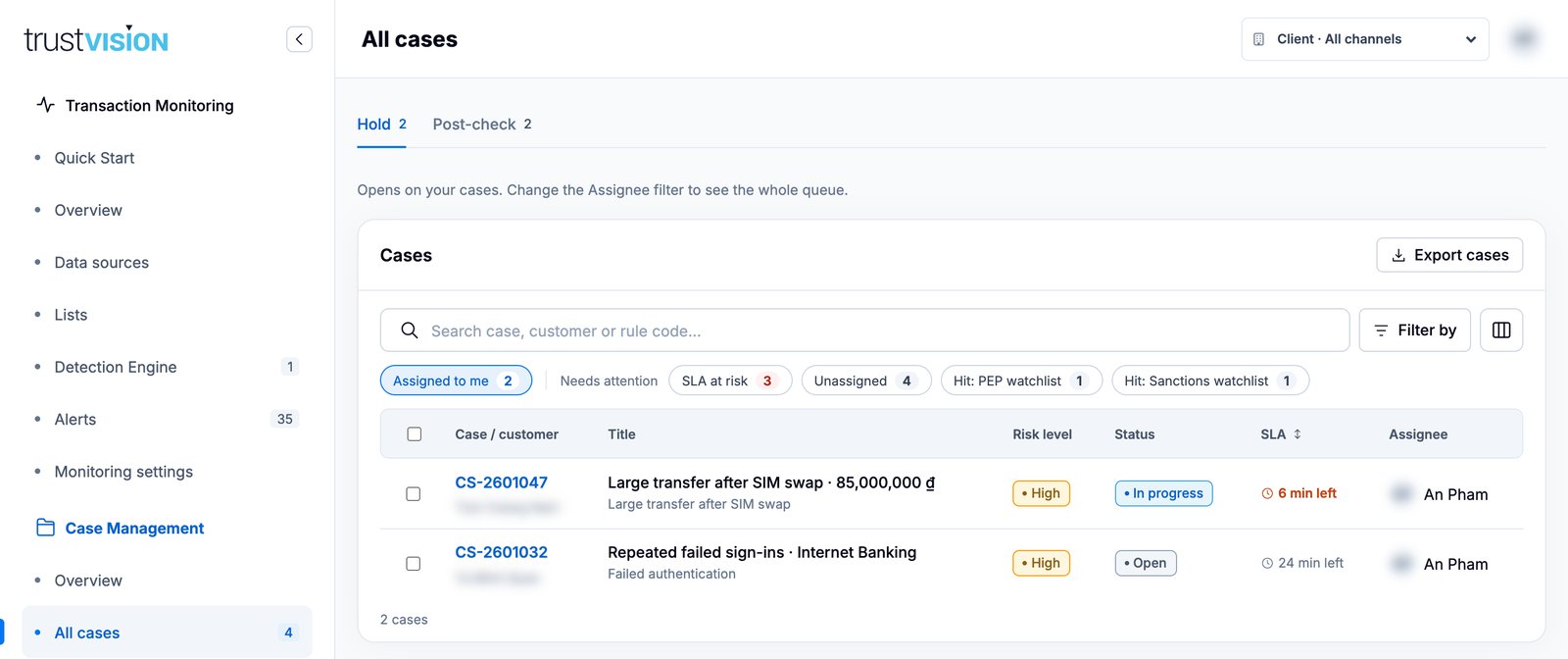
- Tabs: Hold and Post-check.
- By default the queue shows your active cases. Change the Assignee filter to see the whole team's queue.
- Filters (under Filter by): search (case, customer or rule code), Risk, Status (Active, Open, In progress, Resolved, All statuses), Assignee and Created.
- Quick filters: Assigned to me, and under Needs attention: SLA at risk, Unassigned, and Hit: PEP / Sanctions watchlist.
- Sort by SLA to work the most urgent holds first.
- Export cases downloads the filtered list.
Open a case
Click a case to open the investigation panel.
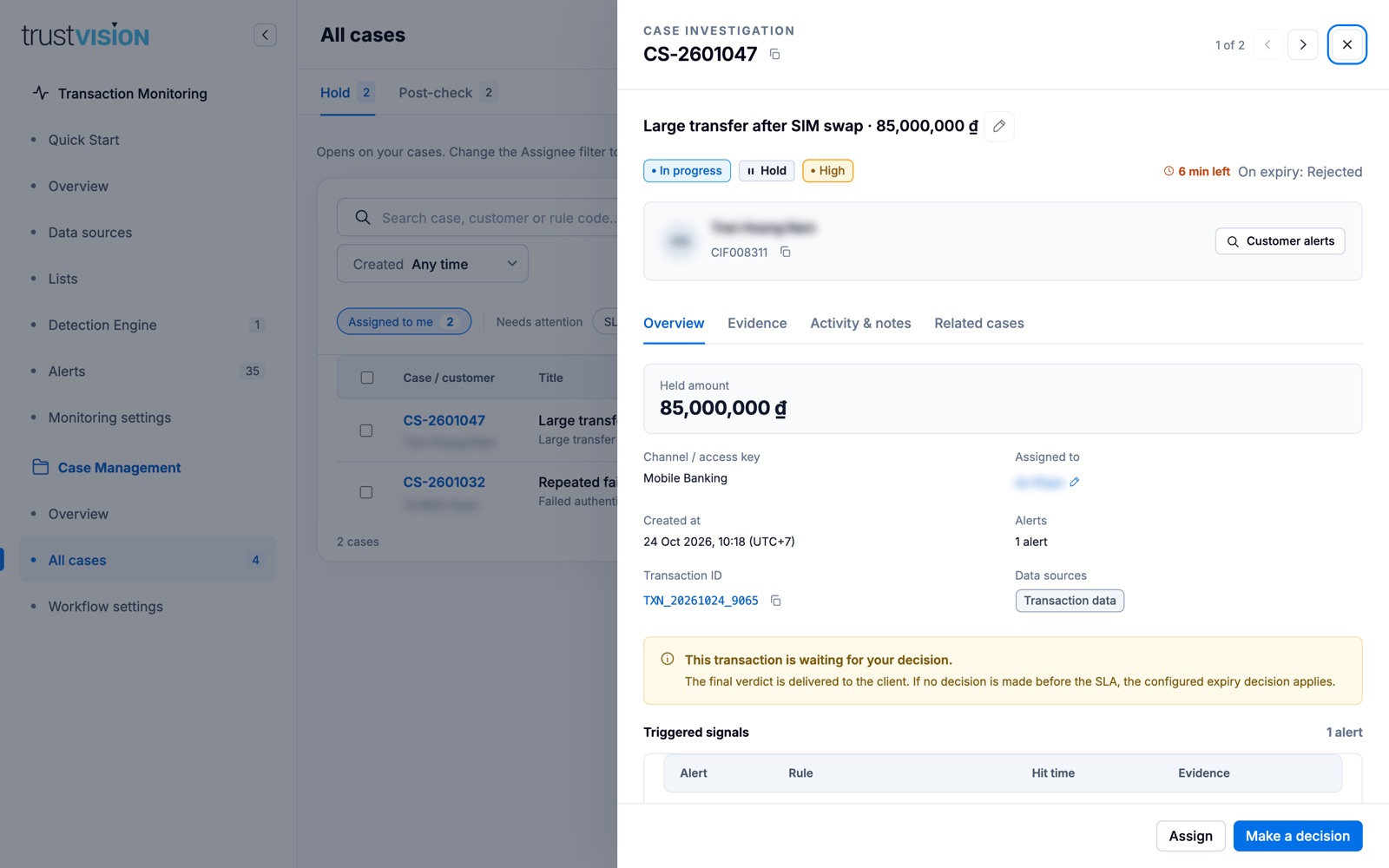
- Header — case ID (with copy button), position in the queue (1 of 2) with previous/next arrows so you can work through the queue without closing the panel.
- Title — click the pencil to rename the case.
- Badges — status, case type and risk level. For holds, the SLA countdown and the decision on expiry are shown on the right.
- Customer — name and ID. Customer alerts lists every alert for this customer.
- Tabs
- Overview — held amount, channel/access key, assignee, creation time, alert count, transaction ID, data sources and the Triggered signals table.
- Evidence — the data each alert was based on; open an alert from here for full detail.
- Activity & notes — the case timeline. Add investigation notes and attach images or PDFs.
- Related cases — other cases for the same customer.
What you can configure
Assign a case
Click Assign (or the pencil next to Assigned to), choose the analyst and confirm. To assign several cases, tick them in the queue and use the bulk action bar.
Decide a hold case
- Open the case and click Make a decision.
- Choose a verdict (or press 1–4):
- Approved — release the transaction to the customer.
- Rejected — decline the transaction.
- Step up — ask the customer for extra verification.
- Block customer user — decline the transaction and send a block verdict to the client. TrustVision does not block the user itself; the client acts on the verdict.
- Enter the Reason for this decision (required). It is kept with the case and in the audit trail.
- Click Confirm decision (or Confirm block for a block).
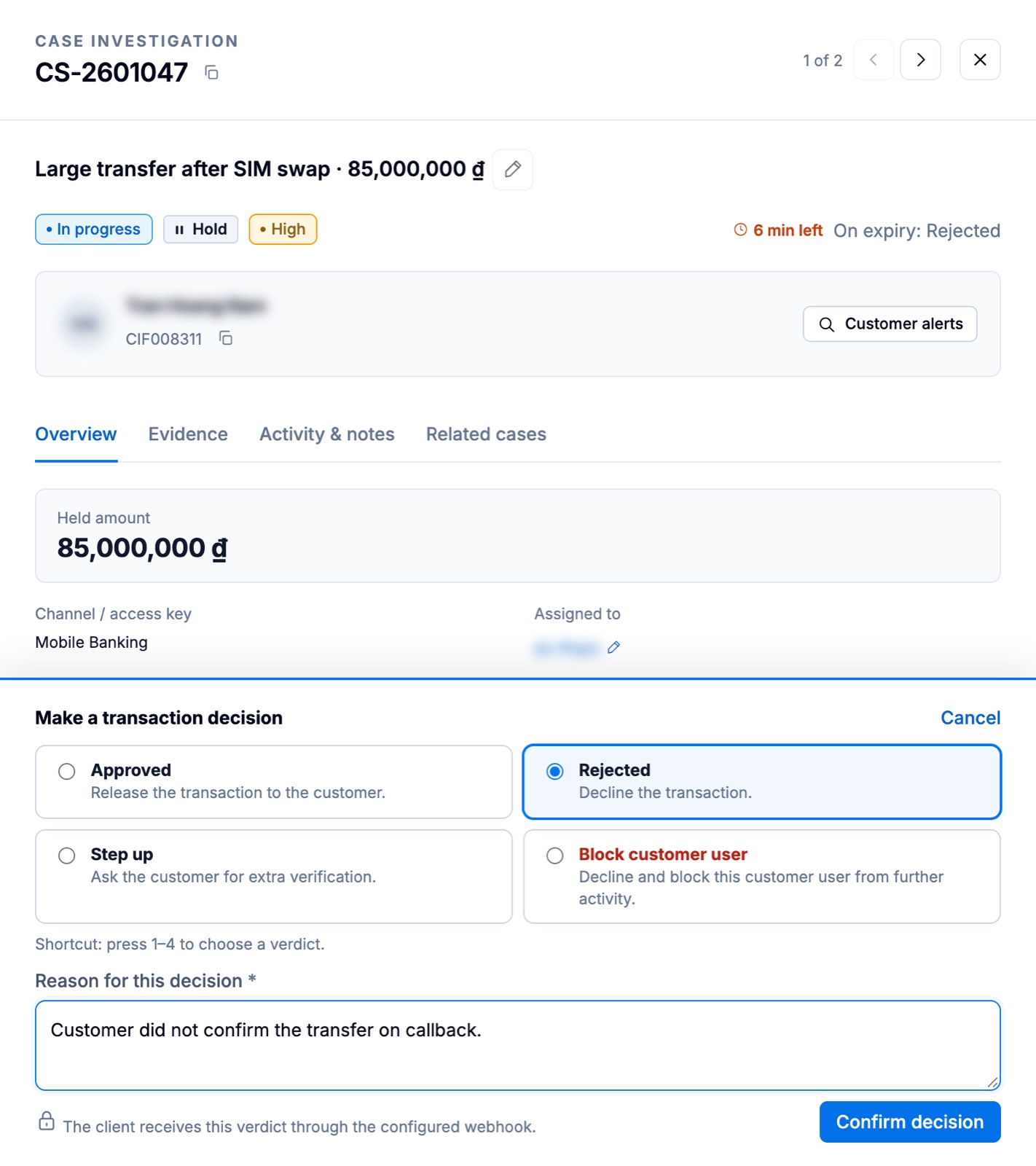
The verdict is sent to your platform through the configured webhook, and the case is resolved.
No verdict is preselected — a high-risk hold must never be decided by default. If no one decides before the SLA expires, the decision on SLA expiry from Workflow settings is applied. SLA expiry never approves a transfer.
Resolve a post-check case
- Open the case and click Resolve case.
- Choose a disposition: False positive (activity is legitimate), True positive (risk confirmed) or Inconclusive (not enough evidence).
- Choose a Follow-up action: No further action or Block customer user (sent to the client as a verdict).
- Enter the reason and confirm with Resolve case.
Resolving a post-check case records the outcome. It never reverses the original transaction.
Bulk decisions
Tick several cases of the same type in the queue and click Bulk decision. A reason is still required. For safety, some verdicts are not available in bulk:
- Block customer user — open each case individually.
- Approved — not available if any selected hold case is Critical; decide those individually.
Related areas
- For queue health and the SLA watchlist, see Case overview.
- For the detection detail behind each case, see Alerts.
- For SLA, expiry decision and post-check grouping, see Workflow settings.