Workflow settings
Workflow settings define how cases behave once they are created: how long a held transaction may wait for an analyst, what happens if nobody decides in time, and how post-check alerts are grouped into cases. Like monitoring settings, they can be set at client level and overridden per access key.
The page has two tabs: Case handling and Change history.
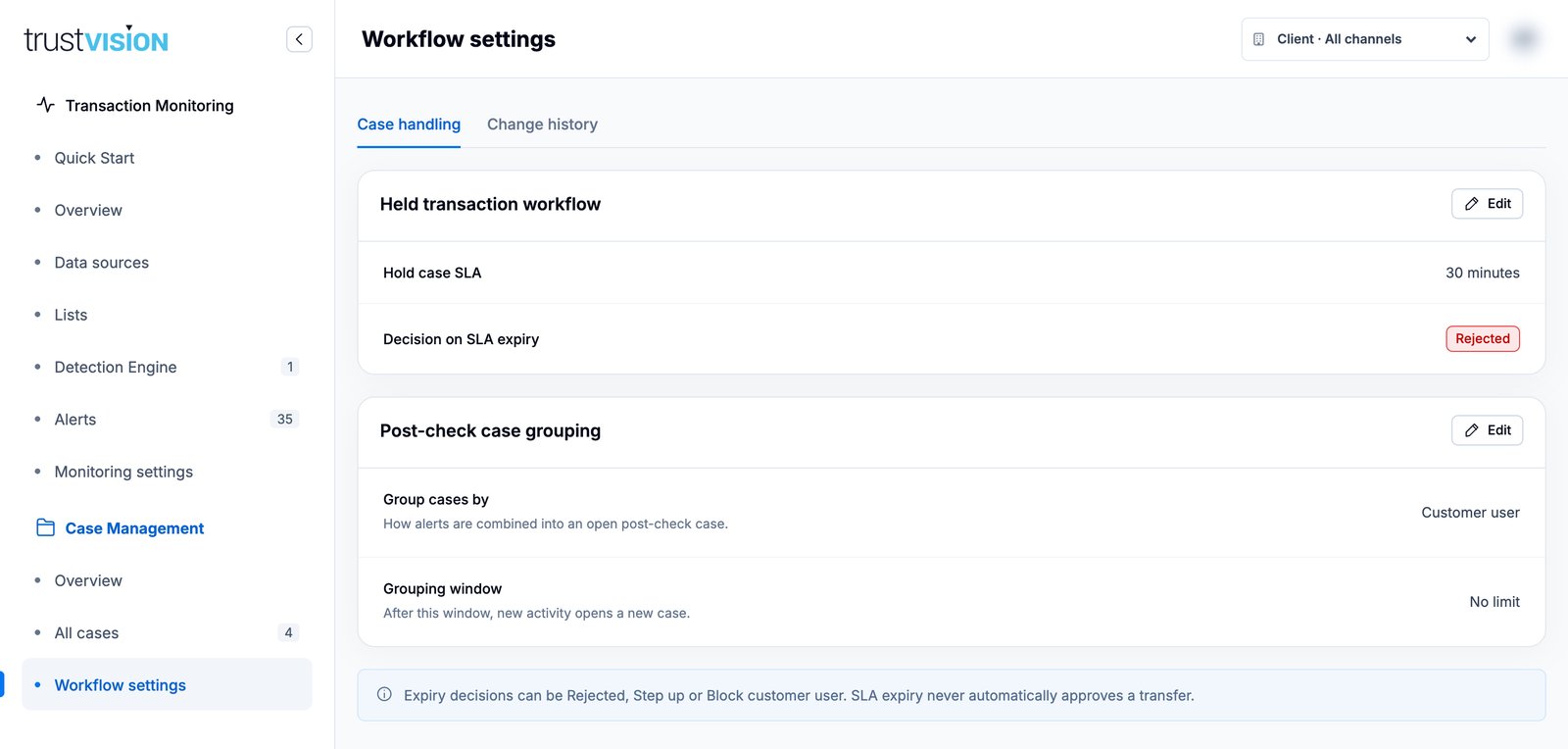
What you can configure
Held transaction workflow
| Setting | Description |
|---|---|
| Hold SLA (minutes) | How long a held transaction waits for an analyst decision. 0 means no SLA. |
| Decision when SLA expires | Applied automatically when the SLA runs out: Rejected, Step up or Block customer user. |
SLA expiry never automatically approves a transfer. Choose the expiry decision with your risk policy owner.
Post-check case grouping
| Setting | Description |
|---|---|
| Group cases by | How alerts are combined into an open post-check case: Customer user, or Rule + customer user. |
| Grouping window (hours) | After this window, new activity opens a new case. 0 means no limit. |
Change a setting
- Click Edit on Held transaction workflow or Post-check case grouping.
- Update the values. SLA changes apply immediately; clients receive them on their next configuration refresh.
- Enter a Reason for change (required).
- Click Review changes and check the before → after summary.
- Click Save changes.
The change, its author, scope and reason appear in Change history.
Related areas
- To see how SLA and expiry decisions appear on a case, see Investigating cases.
- For monitoring controls and verdict delivery, see Monitoring settings.