iOS 4.0.4.x
OVERVIEW
TrustVision SDK is an iOS SDK for TrustVision Engine. It provides these features:
- ID and selfie matching.
- Liveness checking.
Specifications
- Xcode version 16.0+
- target iOS version 11+
- swift version: 5
Integration Steps
1. Adding the SDK to your project
Adding *. framework and *.bundle by "Add Files to {your_name_project}"
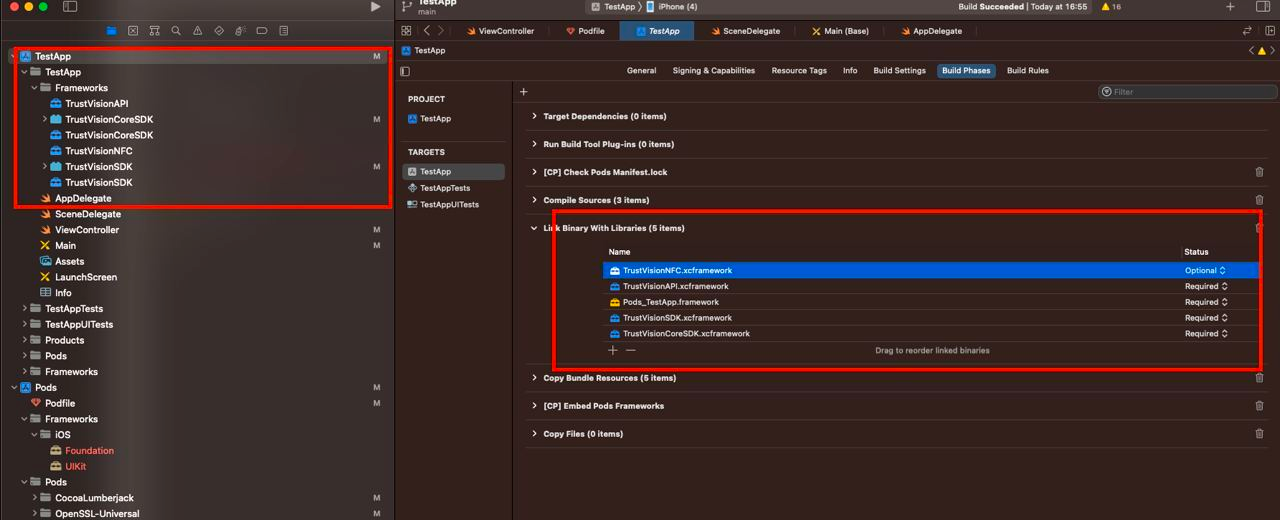
Note: Set up the optional status for TrustVisionNFC.xcframework
- Add key to info.plist:
<key>NSCameraUsageDescription</key>
<string>Open camera</string>
- Add dependencies
- Use CocoaPods, add these lines to podfile
 pod 'TensorFlowLiteSwift', '2.11.0'
 pod 'PromiseKit', '6.8'
 pod 'OpenSSL-Universal', '1.1.2301' # if you are using module NFC
 pod 'CryptoSwift', '1.7.1'
- Those lines are added at the end of podfile
 post_install do |installer|
   installer.pods_project.targets.each do |target|
   // If when compiling your project, "Undefined symbol" occurs, please add the module name which is having the error here
   // add OpenSSL-Universal if you are using module NFC
     if ['TensorFlowLiteC', 'TensorFlowLiteSwift', 'PromiseKit', 'OpenSSL-Universal', 'CryptoSwift'].include? "#{target}"
       target.build_configurations.each do |config|
          config.build_settings['BUILD_LIBRARY_FOR_DISTRIBUTION'] = 'YES'
          config.build_settings["EXCLUDED_ARCHS[sdk=iphonesimulator*]"] = "arm64"
       end
     end
   end
 end
If not, add manually:
- Add these frameworks and chose
Embed & SignCocoaLumberjack.frameworkPromiseKit.framework
- Add these frameworks and chose
Do Not EmbedTensorFlowLite.frameworkTensorFlowLiteC.framework- Add key
Validate WorkspaceinBuild Settings
- Add these frameworks and chose
If host app is using Objective-C, please follow these additional steps:
- add a empty swift file and create bridging file (to force project create key
SWIFT_VERSION) - add flag
-lc++and-ObjCinOther linker flags
- add a empty swift file and create bridging file (to force project create key
2. Import SDK modules
Add the following import statements to your Swift file before using the SDK:
import TrustVisionCoreSDK
import TrustVisionAPI
import TrustVisionSDK
3. Initialize and config SDK
3.0. Initialize SDK
Method 1: Highly recommended:
        let initConfiguration = TVInitializeConfigurationBuilder()
            .setAccessKeyId("accessKey")
            .setAccessKeySecret("secretKey")
            .setBaseUrl("endpoint")
            .setClientSettingsJsonString(nil)
            .setClientSettings(nil)
            .setFlowId(nil)
            .setLanguageCode(nil)
            .setSslCertificates(nil)
            .setXRequestId(nil)
            .setXRequestId2(nil)
            .setEnableDebuggingLog(false)
            .setImageEncryptionKey(nil)
            .setSecurityPublicKey(nil)
            .setHeaders(nil)
            .setEnableGetClientSetting(true)
            .setLogServerAccess("accessKey for log event")
            .setLogServerSecret("secretKey for log event")
            .setLogServerBaseUrl("endpoint for log event")
            .build()

        TrustVisionSdk.shared.initialize(
            config: initConfiguration,
            success: {
            // sdk is initialized
        }, failure: { (error) in
             // sdk is failed to initialize
        }) { (event) in
             // sdk is initialized with event
        }
Options:
- setAccessKeyId():
String?. The access key id of the server. - setAccessKeySecret():
String?. The secret key of the server. - setBaseUrl():
String?. The endpoint of the server. - setClientSettingsJsonString():
String?. The client setting. It's the setting specialized for each client from TS server. It's the response json string get by API https://ekyc.trustingsocial.com/api-reference/customer-api/#get-client-settings. When it's null or unmatched with the expected type then the default setting in the SDK will be used. - setClientSettings():
TVClientSettingsResponse?. The client setting, same with setClientSettingsJsonString(), but in Object type instead of JSON string. - setFlowId():
String?, parameter to get client setting. Default isnull
| Value | Flow |
|---|---|
face_authen | Face Authen |
onboarding | Onboarding |
- setLanguageCode():
String?. Language code.vioren - setSslCertificates():
[TVCertificate?]?. List of init SSL pining certificate files - setImageEncryptionKey().
String?. For image encrypt. Setnilto ignore encryption - setSecurityPublicKey().
String?. For public key. Setnilto use it default in TS - setXRequestId():
String?https://ekyc.trustingsocial.com/api-reference/customer-api#api-reconciliation - setXRequestId2():
String?another xRequestId - setHeaders():
[String :String?]?. The headers to be added to the request. - setEnableGetClientSetting(true)
Bool, default istrue. It allows the SDK to retrieve client settings internally when in Full mode. If set tofalse, please provide client settings usingsetClientSettingsorsetClientSettingsJsonString. - setLogServerAccess:
String. The access key id of the log event server. - setLogServerSecret:
String. The secret key of the log event server. - setLogServerBaseUrl:
String. The URL of the log event server. - success:
SuccessCallback - failure:
FailureCallback - onEvent:
EventCallback
Method 2: Not recommended (Deprecated)
TrustVisionSdk.shared.initialize(
    accessKeyId: "your_access_key",
    accessKeySecret: "your_secret_key",
    baseUrl: "baseUrl",
    localizationFiles: nil,
    clientSettingsJsonString: nil,
    localizationFiles: nil,
    languageCode: "vi",
    theme: TVTheme(),
    xRequestId: nil,
    xRequestId2: nil,
    isForced: false,
    enableDebuggingLog: false,
    tvCertificate: TVCertificate(name:"your_name_ssl_pining_certificate_file", type: "your_name_ssl_pining_certificate_type"),
    imageEncryptionKey: "your_key",
    securityPublicKey: "your_security_public_key"
    success: {
        // sdk is initialized
    }, failure: { error in
        // sdk is failed to initialize
    }, onEvent: { event in
        // sdk is initialized with event
    }
)
Options:
- accessKeyId:
String. The access key id of the server. - accessKeySecret:
String. The secret key of the server. - baseUrl:
String. The endpoint of the server. - clientSettingsJsonString:
String. The jsonConfigurationByServer is optional but recommended. It's the setting specialized for each client from TS server. It's the response json string get by API https://ekyc.trustingsocial.com/api-reference/customer-api/#get-client-settings. When it's null or unmatched with the expected type then the default setting in the SDK will be used. - languageCode:
String. Language code.vioren - theme:
TVTheme. UI customization theme. - tvCertificate:
TVCertificate?. init ssl pining certificate - imageEncryptionKey.
String?. For image encrypt. Setnilto ignore encryption - securityPublicKey.
String?. For public key. Setnilto use it default in TS - xRequestId:
String(optional) https://ekyc.trustingsocial.com/api-reference/customer-api#api-reconciliation - xRequestId2:
String(optional) another xRequestId - success:
SuccessCallback - failure:
FailureCallback - onEvent:
EventCallback
3.1. Update and get sdk language
Allow user to change the sdk language after initialization
TrustVisionSdk.shared.changeLanguageCode(languageCode: String)
TrustVisionSdk.shared.getLanguageCode() -> String?
TrustVisionSdk.shared.getSupportedLanguageCodes() -> []
4. Start the SDK
The SDK provides some built in Activities example activity to capture id, selfie, liveness...
4.0. Capture the ID
The id capturing activity will show the camera to capture image, preview the image. To start the id capturing activity.
4.0.1. Set config parameters
let config = TVIdCardConfiguration(
    cardTypes: [TVCardType],
    cardSide: TVIdCardConfiguration.TVCardSide.front,
    isSoundEnable: false,
    isReadBothSide: false,
    idTamperingLevel: nil,
    skipConfirmScreen: false,
    idCaptureOnlyMode: false,
    isEnablePhotoGalleryPicker: false,
    isEnableScanQr: true,
    isEnableScanNfc: true,
    isEnableVerifyNfc: true,
    isSanityRequired: false,
    isIdCardTamperingDetectionEnable: false,
    isEnableReadCardInfo: false,
    isEnableUploadFrames: true,
    isEnableUploadImages: true,
    isEnableCallApiOcrNfc: true
)
Options:
- cardTypes: [TVCardType]. Card types are allowed to capture. List of supported cards can be found in this table:
| card_type | description | supported countries |
|---|---|---|
TVCardType.defaultVnCardType() | Any of Vietnam national ID versions | vietnam |
TVCardType.cmnd() | Chứng minh nhân dân cũ | vietnam |
TVCardType.cmndNew() | Chứng minh nhân dân mới | vietnam |
TVCardType.cccd() | Căn cước công dân | vietnam |
TVCardType.cccdNew() | Căn cước công dân gắn chip | vietnam |
TVCardType.passport() | Vietnam passport | vietnam |
TVCardType.tcc() | Thẻ căn cước | vietnam |
- cardSide:
TVCardSide. Card side to capture - isSoundEnable:
Bool. Sound should be played or not - isReadBothSide:
Bool. If true then the sdk will capture both side if possible; otherwise, then the card side defined in cardSide will be used - idTamperingLevel:
String?. Tampering level each side of id card - skipConfirmScreen:
Bool. Skip id capturing confirmation screen nor not - idCaptureOnlyMode:
Bool. Just take front and back id card, no further processing sanity, tampering, read id card. - isEnablePhotoGalleryPicker:
Bool. Allow user select id card image from phone gallery - isEnableScanQr :
Bool. Allow user select scan QR code of the id card or not - isEnableScanNfc :
Bool. Allow user select scan NFC chip of the id card or not - isEnableVerifyNfc :
Bool. Enable verify NFC or not. If it's true then the SDK will call the API to verify the NFC data. - isSanityRequired:
Bool. Enable sanity check or not. If it's true then the SDK will call the API to check the sanity of the id card. - isIdCardTamperingDetectionEnable:
Bool. Enable ID Tampering Verification or not. If it's true then the SDK will call the API to check the tampering of the id card. - isEnableReadCardInfo:
Bool. Enable read card info or not. If it's true then the SDK will call the API to read the card info. - isEnableUploadFrames:
Bool. Enable upload video frames or not. If it's false then the SDK won't call the API to upload the frames and the APIs that need the video frames will be skipped or called with empty frames data. - isEnableUploadImages:
Bool. Enable upload images or not. If it's false then the SDK won't call the API to upload the images and the APIs that need the image will be skipped. - isEnableCallApiOcrNfc:
Bool. Enable read card info or not. If it's true then the SDK will call the API to read the card image id, then go to verify NFC.
4.0.2. Start id capturing from configuration
let vc = TrustVisionSdk.shared.startIdCapturing(configuration: config, framesRecordedCallback: { batchId, frames, metadata, currentBatchIds in

}, readIdCardNumber: { (image) in
  return ""
}, success: { (result) in

}, failure: { (error) in

}, cancellation: { (cancellation) in
    // sdk is canceled
})
where:
configuration:
TVIdCardConfigurationframesRecordedCallback:
- batchId:
String. new coming local batch id - frames:
Dictionary. batch frame to push - metadata:
Dictionary. batch metadata to push - currentBatchIds
[String]. For debugging only
This callback will be called each time there is a new frame batch coming. Client upload and get the batch id which is used for later id tampering api call.
- batchId:
success: method that will be called in case success. Parameters:
- result:
TVDetectionResult. Use the following fields:- frontIdImage:
TVImageClass - backIdImage:
TVImageClass - frontIdQr:
TVCardQr - backIdQr:
TVCardQr - nfcInfoResult:
TVNfcInfoResult
- frontIdImage:
- result:
failure:
FailureCallbackcancellation:
CancellationCallbackreadIdCardNumber: method that will be called in case of scan NFC to read SDK Id number from the image. The readIdCardNumber method has a parameter and return a string which is the id number of the card.
- image:
TVImageClass. image of back id card
- image:
4.0.3. Handle framesRecordedCallback
With each batch that returned by framesRecordedCallback callback,
call the below api to get server frame batch id, keep it corresponds to batchId returned in framesRecordedCallback - local id
https://ekyc.trustingsocial.com/api-reference/customer-api/#upload-videoaudioframes
For example:
  var frontCardFrameBatchIdsDictionary: [String: String] = [:]
  var backCardFrameBatchIdsDictionary: [String: String] = [:]
  . . .
  framesRecordedCallback = { batchId, frames, metadata, currentBatchIds in
        let batchDict = frames.merging(["metadata": metadata, "label": "The card type"]) { $1 }
        let jsonToBeUploaded = try JSONSerialization.data(withJSONObject: batchDict, options: .prettyPrinted)
    // upload frame batch to server using this api:
    // https://ekyc.trustingsocial.com/api-reference/customer-api/#upload-videoaudioframes
    doYourUploadFrameBatchHere(withJSON: jsonToBeUploaded) { uploadingResult in
      if cardSide == TVIdCardConfiguration.TVCardSide.front {
        frontCardFrameBatchIdsDictionary.updateValue(uploadingResult.fileId, forKey: batchId)
      }
      else {
        backCardFrameBatchIdsDictionary.updateValue(uploadingResult.fileId, forKey: batchId)
      }
    }
  }
4.0.4. Handle ID capturing results
4.0.4.1. Remove redundant frame batch ids
For example:
// These lists contain all valid frame batch ids that responded by server
var validFrontCardServerFrameBatchIds: [String] = []
var validBackCardServerFrameBatchIds: [String] = []
private func removeRedudantFrameBatchIds(batchIdsDictionary: [String: String], validIdsFromSDK: [String]) -> [String] {
    return batchIdsDictionary.compactMap({
        if validIdsFromSDK.contains($0.key) {
            return $0.value
        }
        else {
            return nil
        }
    })
}
. . .
success = { result in
    // result.frontCardFrameBatchIds && result.backCardFrameBatchIds is empty when Frame Recording feature is disabled by client settings.
    // Wait until every Frame batch has been uploaded to server before calling this
    if(everyFrameBatchUploadingCompleted) {
        if (!result.frontCardFrameBatchIds.isEmpty) {
            validFrontCardServerFrameBatchIds = removeRedudantFrameBatchIds(frontCardFrameBatchIdsDictionary, result.frontCardFrameBatchIds)
        }
        if (!result.backCardFrameBatchIds.isEmpty) {
            validBackCardServerFrameBatchIds = removeRedudantFrameBatchIds(backCardFrameBatchIdsDictionary, result.backCardFrameBatchIds)
        }
    }
}
4.0.4.2. Get Image Ids to be used in a particular use case
Use this API https://ekyc.trustingsocial.com/api-reference/customer-api/#upload-image The images should be uploaded as JPEG data with 100% quality. For example:
{
  "file": "<dataToUpload>",
  "label": "proper label, check the API document for detail"
}
4.0.4.3. Upload QR images
if result.frontIdQr.isRequired is true then result.frontIdQr.images array should be non-empty. Otherwise, clients should be warned to re-capture id card photos.
QR images will be uploaded with this api: https://ekyc.trustingsocial.com/api-reference/customer-api/#upload-image
let dataToUpload = result.frontIdQr.images[i].imageByteArray
let qrId = yourMethodToUploadImage(dataToUpload)
- Fields:
- data:
dataToUpload - label:
result.frontIdQr.images[i].label - metadata:
result.frontIdQr.images[i].metadata
- data:
*The same logic will be applied to result.backIdQr
4.0.4.4. Call this api to check id tampering
Call this API https://ekyc.trustingsocial.com/api-reference/customer-api/#request-detect-id-card-tampering with params:
{
    "image": {
        "id": "<frontCardId>"
    },
     "image2": {
        "id": "<backCardId>"
    },
    "qr1_images": [{
        "id": "<qrId>"
    }],
    "card_type": "<result.cardType.id>",
    "videos": [{
          "id": "<validFrontCardServerFrameBatchIds[index]>"
      },
      {
          "id": "<validFrontCardServerFrameBatchIds[index + 1]>"
      },
      ...
      {
          "id": "<validBackCardServerFrameBatchIds[index]>"
      },
      {
          "id": "<validBackCardServerFrameBatchIds[index + 1]>"
      },
      ...
    ]
}
4.0.5. Scan NFC
After capture the back card, if the card has nfc chip, SDK will call readIdCardNumber method in background thread. With image that returned by readIdCardNumber,
call api to detect id number of the card then return id number to start flow scan NFC. If id number is null or empty, SDK skip flow scan NFC and continue
readIdCardNumber: { [weak self] (image) in
  var idNumber = ""
  // call api or do any thing to read and return id number
  // TODO
  return idNumber
}
4.1. Capture the selfie
The selfie capturing activity will show the camera to capture image, preview the image and verify active liveness in local. To start the selfie capturing activity.
4.1.1. Set config parameters
let config = TVSelfieConfiguration(
                cameraOption: TVCameraOption.front,
                isSoundEnable: true,
                skipConfirmScreen: true,
                livenessMode: TVLivenessMode.flash_16,
                isSanityRequired: true,
                isEnableVerifyLiveness: true,
                isEnableUploadFrames: true,
                isEnableUploadImages: true,
                isEnableExitConfirmPopup: false)
Options:
- cameraOption:
TVCameraOption. Set the camera mode - isSoundEnable:
Bool. Sound should be played or not - skipConfirmScreen:
Bool. Skip selfie capturing confirmation screen or not - livenessMode:
TVLivenessMode. Set the liveness verification mode - isSanityRequired:
Bool. Enable sanity check or not. If it's true then the SDK will call the API to check the sanity of the selfie. - isEnableVerifyLiveness:
Bool. Enable liveness verification or not. If it's true then the SDK will call the API to verify the liveness of the selfie. - isEnableUploadFrames:
Bool. Enable upload video frames or not. If it's false then the SDK won't call the API to upload the frames and the APIs that need the video frames will be skipped or called with empty frames data. - isEnableUploadImages:
Bool. Enable upload images or not. If it's false then the SDK won't call the API to upload the images and the APIs that need the image will be skipped. - isEnableExitConfirmPopup:
Bool. Enable exit confirm popup or not. If it's true then the SDK will show the exit confirm popup when the user tries to exit the selfie capturing activity.
4.1.2. Start selfie capturing from configuration
let vc = TrustVisionSdk.shared.startSelfieCapturing(configuration: config,
framesRecordedCallback: { batchId, frames, metadata, currentBatchIds in

}, success: { (result) in

}, failure: { (error) in

}, cancellation: { (cancellation) in
    // sdk is canceled
})
where:
configuration:
TVSelfieConfigurationframesRecordedCallback:
- batchId:
String. new coming local batch id - frames:
Dictionary. batch frame to push - metadata:
Dictionary. batch metadata to push - currentBatchIds
[String]. For debugging only
This callback will be called each time there is a new frame batch coming. Client upload and get the batch id which is used for later selfie liveness api call.
- batchId:
success method that will be called in case success. Parameters:
- result :
TVDetectionResult. Use the following fields:- selfieImages:
[TVGestureImage]. List images includes frontal and gesture faces. - livenessFrameBatchIds:
[String]. List valid frame batch id in liveness. - faces:
[TVImageClass]. List images includes frontal faces. - gestureFaces:
[TVGestureFace]. List images includes gesture faces.
- selfieImages:
- result :
failure:
FailureCallbackcancellation:
CancellationCallback
4.1.3. Handle framesRecordedCallback callback
With each batch that returned by framesRecordedCallback callback,
call the below api to get server frame batch id, keep it corresponds to batchId returned in framesRecordedCallback - local id
https://ekyc.trustingsocial.com/api-reference/customer-api/#upload-videoaudioframes
For example:
  // this dictionary will be used for Liveness verification
  var selfieFrameBatchIdsDictionary: [String: String] = [:]
  . . .
  framesRecordedCallback = { batchId, frames, metadata, currentBatchIds in
    let batchDict = frames.merging(["metadata": metadata, "label": "video"]) { $1 }
    let jsonToBeUploaded = try JSONSerialization.data(withJSONObject: batchDict, options: .prettyPrinted)
    // upload frame batch to server using this api:
    // https://ekyc.trustingsocial.com/api-reference/customer-api/#upload-videoaudioframes
    doYourUploadFrameBatchHere(withJSON: jsonToBeUploaded) { uploadingResult in
        // Keep the id that generated by the SDK corresponding with the one responded from server
        selfieFrameBatchIdsDictionary.updateValue(uploadingResult.fileId, forKey: batchId)
    }
  }
4.1.4. Handle selfie capturing results
4.1.4.1. Remove redundant frame batch ids
For example:
// These lists contain all valid frame batch ids that responded by server
var validServerFrameBatchIds: [String] = []
private func removeRedudantFrameBatchIds(batchIdsDictionary: [String: String], validIdsFromSDK: [String]) -> [String] {
    return batchIdsDictionary.compactMap({
        if validIdsFromSDK.contains($0.key) {
            return $0.value
        }
        else {
            return nil
        }
    })
}
. . .
success = { result in
    // result.livenessFrameBatchIds is empty when Frame Recording feature is disabled by client settings.
    // Wait until every Frame batch has been uploaded to server before calling this
    if(everyFrameBatchUploadingCompleted) {
        if (!result.livenessFrameBatchIds.isEmpty) {
            validServerFrameBatchIds = removeRedudantFrameBatchIds(selfieFrameBatchIdsDictionary, result.livenessFrameBatchIds)
        }
    }
}
4.1.4.2 . Use this api to get image id:
https://ekyc.trustingsocial.com/api-reference/customer-api/#upload-image The images should be uploaded as JPEG data with 100% quality. For example:
// with frontal images
let dataToUpload = result.selfieImages[i].frontalImage.imageByteArray

// with gesture images
let dataToUpload = result.selfieImages[i].gestureImage.imageByteArray
id of frontal image i = image id of result.selfieImages[i].frontalImage.imageByteArray
id of gesture image i = image id of result.selfieImages[i].gestureImage.imageByteArray
4.1.4.3. Use this api to get video id:
https://ekyc.trustingsocial.com/api-reference/customer-api/#upload-videoaudioframes
id of selfie video i = video id of result.livenessVideos[i]
4.1.4.4. Call this api to check liveness
API document: https://ekyc.trustingsocial.com/api-reference/customer-api/#verify-face-liveness
Call the above api with below parameters:
imagesfield
{
  "images": [
    {
      "id": "<result.selfieImages[index].frontalImage.imageId>"
    },
    {
      "id": "<result.selfieImages[index + 1].frontalImage.imageId>"
    },
    ...
  ]
}
gesture_imagesfield
{
  "gesture_images": [
    {
      "gesture": "<result.selfieImages[index].gestureType.description>",
      "images": [{
          "id":  "<result.selfieImages[index].gestureImage.imageId>"
      }]
    },
    {
      "gesture": "<result.selfieImages[index + 1].gestureType.description>",
      "images": [{
          "id":  "<result.selfieImages[index + 1].gestureImage.imageId>"
      }]
    },
    ...
  ]
}
videosfield
{
  "videos": [
    {
      "id": "<validServerFrameBatchIds[index]>"
    },
    {
      "id": "<validServerFrameBatchIds[index + 1]>"
    },
    ...
  ]
}
metadatafield
{
  "metadata": "<result.livenessMetadata>"
}
4.2. Scan QR
The QR scanning activity will show the camera to scan image, preview the image. To start the QR scanning activity.
4.2.1. Set config parameters
let config = TVQRConfiguration(
    cardTypes: [TVCardType],
    cardSide: TVIdCardConfiguration.TVCardSide.front,
    skipConfirmScreen: true,
    isEnableUploadFrames: false,
    isEnableUploadImages: false
)
Options:
- cardTypes:
[TVCardType]. Card types are allowed to capture. List of supported cards can be found in this table:
| card_type | description | supported countries |
|---|---|---|
TVCardType.defaultVnCardType() | Any of Vietnam national ID versions | vietnam |
TVCardType.cmnd() | Chứng minh nhân dân cũ | vietnam |
TVCardType.cmndNew() | Chứng minh nhân dân mới | vietnam |
TVCardType.cccd() | Căn cước công dân | vietnam |
TVCardType.cccdNew() | Căn cước công dân gắn chip | vietnam |
TVCardType.passport() | Vietnam passport | vietnam |
- cardSide:
TVCardSide. Card side to capture - skipConfirmScreen:
Bool. Skip id capturing confirmation screen nor not - isEnableUploadFrames:
Bool. Enable upload video frames or not. If it's false then the SDK won't call the API to upload the frames and the APIs that need the video frames will be skipped or called with empty frames data. - isEnableUploadImages:
Bool. Enable upload images or not. If it's false then the SDK won't call the API to upload the images and the APIs that need the image will be skipped.
4.2.2. Start QR scanning from configuration
let vc = TrustVisionSdk.shared.startQRScanning(configuration: config, success: { (result) in

}, failure: { (error) in

}, cancellation: { (cancellation) in
    // sdk is canceled
})
where:
- configuration:
TVQRConfiguration - success: method that will be called in case success. Parameters:
- result:
TVDetectionResult. Use the following fields:- frontIdQr
- backIdQr
- result:
- failure:
FailureCallback - cancellation:
CancellationCallback
4.3. Scan NFC
The NFC scanner activity will show the guideline screen, the scanner popup. To start the NFC scanner activity.
4.3.1 Add NFC Capability
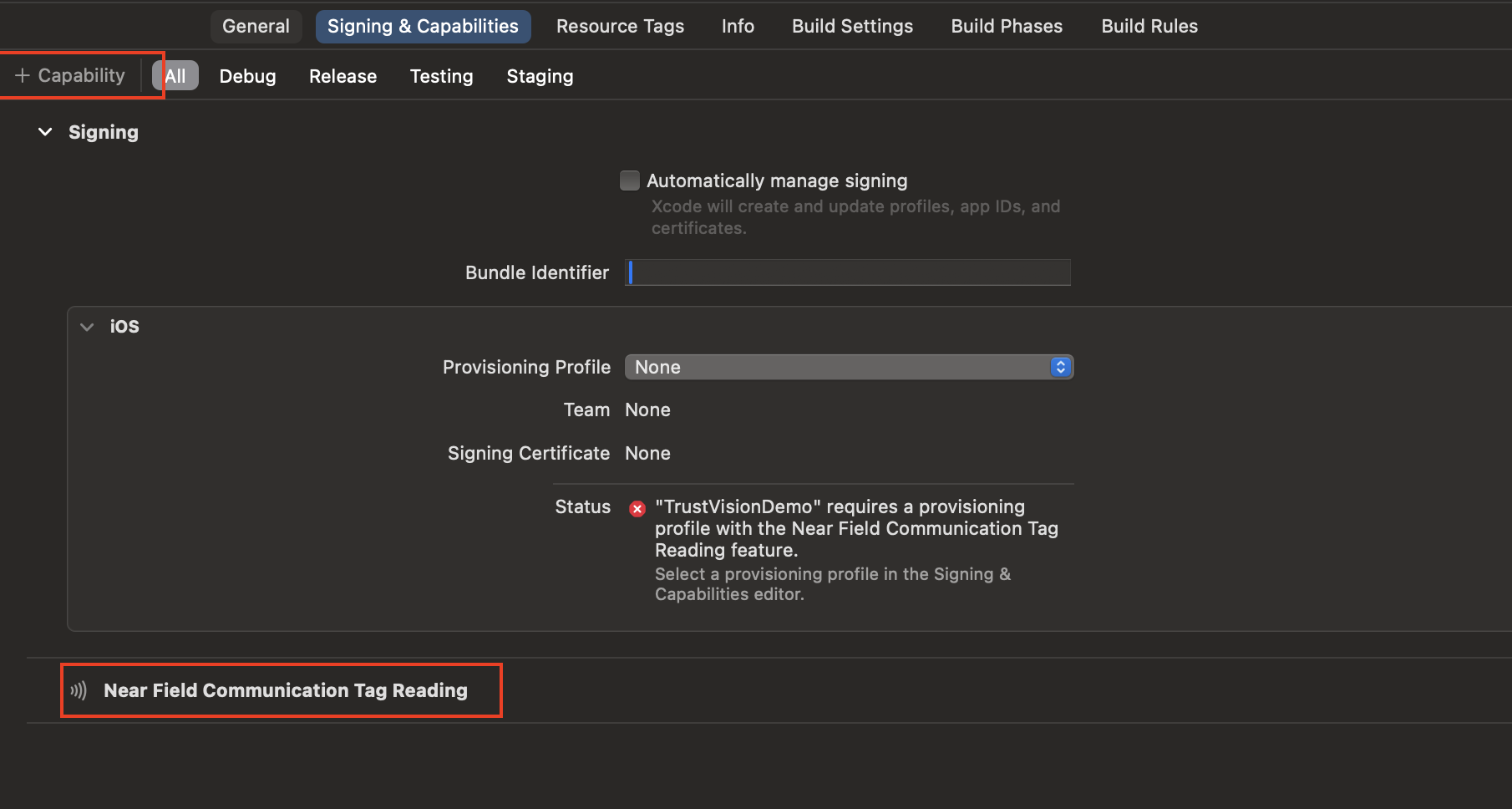
4.3.2. Set config Info.plist
<key>NFCReaderUsageDescription</key>
<string>This app would like to use NFC to scan CCCD chip</string>

<key>com.apple.developer.nfc.readersession.iso7816.select-identifiers</key>
    <array>
        <string>A0000002471001</string>
        <string>A0000002472001</string>
        <string>00000000000000</string>
    </array>
4.3.3. Set config parameters
let config = TVIdNfcConfiguration(
    nfcCode: nfcCode,
    nfcSod: sod,
    cardIssueDate: issueDate,
    nfcCacheFields: nfcCacheFields,
    isRequestReadImageNfc: true,
    isRequestCloneDetectionNfc: true,
    isRequestIntegrityCheckNfc: true,
    nfcMaxRetries: 5,
    isEnableCheckNfcData: true,
    isEnableVerifyNfc: true,
    dateOfBirth:  "dd/MM/yyyy",
    dateOfExpiry : "dd/MM/yyyy"
)
Options:
- nfcCode:
Stringis the id number of ID card - nfcSod:
String(optional) is the hash of SOD,hash_sodget from API /ekyc-core/nfc/check-nfc/ - cardIssueDate:
String(optional) is the issue date of ID card (DD/MM/YYYY) - nfcCacheFields:
List<String>(optional) is the list of fields that was cached from previous scanning,input_fieldsfrom from API /ekyc-core/nfc/check-nfc/ - isRequestReadImageNfc:
Bool. Read image in the chip when scan nfc or not - isRequestCloneDetectionNfc:
Bool. Check clone of the chip when scanning nfc or not - isRequestIntegrityCheckNfc:
Bool. Check integrity of the chip when scanning nfc or not - nfcMaxRetries:
Int. The maximum number of times the SDK retries an NFC scanning before giving up - isEnableCheckNfcData:
Bool. Enable check NFC data or not. If it's true then the SDK will call the API to get sod and cached fields of the NFC data. - isEnableVerifyNfc:
Bool. Enable verify NFC or not. If it's true then the SDK will call the API to verify the NFC data. - dateOfBirth:
String?(optional) is the date of birth (dd/MM/yyyy) - dateOfExpiry:
String?(optional) is the expired of ID card (dd/MM/yyyy). For cards with unlimited expiration, please input: 31/12/9999
4.3.4. Start NFC scanning from configuration
let vc = TrustVisionSdk.shared.startNfcScanning(configuration: config, success: { (result) in

}, failure: { (error) in

}, cancellation: { (cancellation) in
    // sdk is canceled
})
where:
- configuration:
TVQRConfiguration - success: method that will be called in case success. Parameters:
- result:
TVDetectionResult. Use the following fields:- nfcInfoResult:
TVNfcInfoResult
- nfcInfoResult:
- result:
- failure:
FailureCallback - cancellation:
CancellationCallback
4.4. Face authentication
The face authentication activity will show the camera to capture the face, preview the image.
4.4.1. Set config parameters
let authenConfigurationComponents = TVAuthenConfigurationComponents(
    selfieConfig: selfieConfig,
    cardConfig: cardConfig,
    nfcConfig: nfcConfig)

let config = TVFaceAuthenConfiguration(
    type: TVFaceAuthenType.register,
    userId: "user_id",
    method: TVFaceAuthenMethod.active,
    authenConfigurationComponents: authenConfigurationComponents,
    isEnableFaceAuthentication: true,
    isEnableFaceRegistration: true
)
Options:
- type:
TVFaceAuthenType. Set the TVFaceAuthenType mode to register or authenticate. - userId:
Stringis the user id - method:
TVFaceAuthenMethod. Set the TVFaceAuthenMethod mode to authen. - authenConfigurationComponents:
TVAuthenConfigurationComponents. Set up the configurations. Use the following fields:- selfieConfig:
TVSelfieConfiguration(optional): set it if you want to use selfie capturing in face authentication. - cardConfig:
TVIdCardConfiguration(optional): set it if you want to use scan nfc in face authentication. - nfcConfig:
TVIdNfcConfiguration(optional): set it if you want to use scan nfc in face authentication.
- selfieConfig:
- isEnableFaceAuthentication:
Bool. Enable call API face authentication or not - isEnableFaceRegistration:
Bool. Enable call API face registration or not - cameraChallengeEnabled:
NSNumber?(aBool, optional). Turns the camera challenge on or off for this session only. It is not aninitparameter — set it on the configuration after creating it. Defaults tonil.nil: follow the SDK settings of your account.true/false: turn the camera challenge on / off for this session.
let config = TVFaceAuthenConfiguration(...)
config.cameraChallengeEnabled = NSNumber(value: true)
The camera challenge only runs for flash methods (and passive V2 liveness), and only when your account has camera challenge configured. If your account's SDK settings force the camera challenge on or off for every session, that setting wins over
cameraChallengeEnabled. The SDK reports whether the challenge actually ran in thecamera_challenge_performedfield of the Authenticate and Register a face requests it sends.
4.4.2. Start face authentication from configuration
let vc = try TrustVisionSdk.shared.startFaceAuthen(
config: config,
framesRecordedCallback: { batchId, frames, metadata, currentBatchIds in

},
onLoading: {
},
success: { [weak self] (result) in

},
failure: { (error) in

}, cancellation: { (cancellation) in
  // sdk is canceled
})
where:
config:
TVFaceAuthenConfigurationframesRecordedCallback:
- batchId:
String. new coming local batch id - frames:
Dictionary. batch frame to push - metadata:
Dictionary. batch metadata to push - currentBatchIds
[String]. For debugging only
This callback will be called each time there is a new frame batch coming.
- batchId:
onLoading: the callback provides the loading screen at the host app when the SDK is processing for request face authentication.
success: method that will be called in case success for register. Parameters:
- result:
TVDetectionResult. Use the following fields:- faceAuthRegisterResult:
TVFaceAuthRegisterResult. - faceAuthResult:
TVFaceAuthResult.
- faceAuthRegisterResult:
- result:
failure:
FailureCallbackcancellation:
CancellationCallback
4.4.3. Sample code
Note: Sample code for face authentication in the case of initializing the SDK with the parameters endpoint, accessKeyId, and accessKeySecret.
// Define configs as you need. Example:
let selfieConfig = TVSelfieConfiguration(
                cameraOption: .front,
                isSoundEnable: true,
                skipConfirmScreen: true,
                livenessMode: .active,
                isSanityRequired: false,
                isEnableVerifyLiveness: false,
                isEnableUploadFrames: false,
                isEnableUploadImages: false
            )
let cardConfig = TVIdCardConfiguration(
                cardTypes: [TVCardType.id],
                cardSide: .front,
                isSoundEnable: true,
                isReadBothSide: false,
                idTamperingLevel: nil,
                skipConfirmScreen: false,
                idCaptureOnlyMode: false,
                isEnablePhotoGalleryPicker: false,
                isEnableScanQr: true,
                isEnableScanNfc: true,
                isEnableVerifyNfc: true,
                isSanityRequired: false,
                isIdCardTamperingDetectionEnable: false,
                isEnableReadCardInfo: false,
                isEnableUploadFrames: true,
                isEnableUploadImages: true
            )
let nfcConfig = TVIdConfirmationTheme(
                nfcCode: "nfc_code",
                nfcSod: "nfc_sod",
                cardIssueDate: "card_issue_date",
                nfcCacheFields: ["nfc_cache_field"],
                isRequestReadImageNfc: true,
                isRequestCloneDetectionNfc: true,
                isRequestIntegrityCheckNfc: true,
                nfcMaxRetries: 5,
                isEnableCheckNfcData: true,
                isEnableVerifyNfc: true
            )
// Set up config for face authentication
let authenConfigurationComponents = TVAuthenConfigurationComponents(
                selfieConfig: selfieConfig,
                cardConfig: cardConfig,
                nfcConfig: nfcConfig)

let config = TVFaceAuthenConfiguration(
                type: .register,
                userId: cusUserId,
                method: TVFaceAuthSession.shared.registerFaceMethod,
                authenConfigurationComponents: authenConfigurationComponents,
                isEnableFaceAuthentication: false,
                isEnableFaceRegistration: false
            )

// Start face authentication
TrustVisionSdk.shared.startFaceAuthen(
    config: config,
    framesRecordedCallback: { batchId, frames, metadata, currentBatchIds in
        // Handle frame recorded callback
    },
    onLoading: {
        // Handle loading screen at your side when the SDK is processing for request face authentication
        // Leave it if you do need it, do not forget to stop loading after the SDK returns success, failed, or canceled
    },
    success: { [weak self] (result) in
        // Handle success
        self?.handleSuccessFaceAuthen(result)
    },
    failure: { (error) in
        // Handle failure
    },
    cancellation: { (cancellation) in
        // Handle cancellation
    }

func handleSuccessFaceAuthen(_ result: TVDetectionResult) {
    var selfieImages = result.selfieImages
    let videos: [TVRequestVideo] = result.livenessFrameBatchIds.map{TVRequestVideo(id: $0)}
    var faces : [TVRequestImage] = result.faces.map{TVRequestImage(id: $0.imageId)}
    var gestures : [TVGestureFace] = result.gestureFaces.map{TVGestureFace(gesture: $0.gestureType.description.lowercased(), images: [TVRequestImage(id: $0.gestureImage.imageId)])

    // call api to verify face authentication
    // /api-docs/face-authentication-api/authenticate/
    let faceAuthenRequest = TVRequestFaceAuthen(
        cusUserId
        images: faces,
        gestureImages: gestures,
        videos: videos,
        "selfie",
        "transfer"
    )
    yourMethodToCallFaceAuthenticationAPI(request)
}
4.5. Error handling
// [FlowStartingFunc]: startIdCapturing, startSelfieCapturing, startQRScanning, startNfcScanning, startFaceAuthen
TrustVisionSdk.shared.[FlowStartingFunc]
   (config: ...,
   error: { [weak self] error in
   // Handle error
    self?.handleError(error)
   })

func handleError(_ error: TVError) {
    switch error.category {
    case .local:
        // Handle SDK error
        switch error.errorCode {
        case "unidentified":
            // unidentified error (general)
        case "authentication_missing_error":
            // sdk is not initialized
        case "sdk_canceled":
            // sdk is canceled by user
        case "permission_missing_error":
            // permission missing error (example: camera permission)
        case "setupSDK":
            // fail to set up sdk
        case "max_retry_reached":
           // When the SDK reaches the maximum timeout, this only applies to FlashLiveness

        default:
            // Handle other local errors
        }
    case .server:
        // Handle server error
        // The SDK has an unexpected error when calling API
        // https://ekyc.trustingsocial.com/api-reference/customer-api#response-errors
    }
}
5. Additional built-in API
The SDK provides some built-in API for quick detection
5.0. Detect if device support NFC
Allow users to quick check if device support NFC so that they can determine for their next step
TrustVisionSdk.shared.isNfcSupport() -> Bool
5.1. Get Device Info
Allow users to get device information: TVDeviceInfoProvider
DeviceInfo info = TrustVisionSDK.INSTANCE.getDeviceInfo(Context);
TVDeviceInfoProvider contains following properties (will return nil if SDK cannot get information of that property)
| Property | Type | Description |
|---|---|---|
id | String | Device Id |
udid | String | Same as above, Unique Device Id |
sn | String | Serial Number |
imei | String | IMEI |
manufacturer | String | Manufacturer |
deviceName | String | Device name |
wlanMac | String | Wireless mac address |
phoneNumber | String | Current Phone Number |
location | LocationInfo | Location information {longitude, latitude} |
LocationInfo contains following properties (will return empty string if SDK cannot get information of that property)
Please request location permission from your app first.
| Property | Type |
|---|---|
longitude | String |
latitude | String |
API references
1. TVDetectionResult
| Properties | Type | description |
|---|---|---|
frontIdImage | TVImageClass | Image of id card's front side (use field imageByteArray) |
backIdImage | TVImageClass | Image of id card's back side (use field imageByteArray) |
frontIdQr | TVCardQr | Info of QR of id card's front side |
backIdQr | TVCardQr | Info of QR of id card's back side |
frontCardFrameBatchIds | [String] | List of front id frame batch IDs |
backCardFrameBatchIds | [String] | List of back id frame batch IDs |
nfcInfoResult | TVNfcInfoResult | Info in nfc chip. Use it to call api verify NFC |
| Properties | Type | description |
|---|---|---|
livenessResult | TVLivenessResult | Liveness check result |
selfieImages | [TVGestureImage] | Images of selfie |
livenessFrameBatchIds | [String] | List of selfie frame batch IDs |
livenessVideos | [Data] | List of video data during checking liveness |
livenessMetadata | [String: Any]? | Collected data during liveness checking process |
2. TVGestureImage
- gestureType: GestureType
- frontalImage: TVImageClass
- gestureImage: TVImageClass
3. TVGestureImage.GestureType
- up
- down
- left
- right
- frontal
4. TVCameraOption (Enum)
- TVCameraOption.front: Use front camera
- TVCameraOption.back: Use back camera
- TVCameraOption.both: The screen will have a button to switch between front & back camera
5. TVLivenessMode (Enum)
- TVLivenessMode.passive: Use texture-based approach.
- TVLivenessMode.active: Use challenge-response approach. User needs to follow and finish all steps when capturing selfie like turn left, right, up, smile, open mouth...
- TVLivenessMode.flash: Use challenge-response approach. User needs to follow and finish all steps when capturing selfie like far, close, flash... (for flash mode)
- TVLivenessMode.flashEdge: Same with TVLivenessMode.flash, but with flashEdge mode.
- TVLivenessMode.flashAdvanced: Same with TVLivenessMode.flash, but with flashAdvanced mode.
- TVLivenessMode.flash8: Same with TVLivenessMode.flash, but with flash_8 mode.
- TVLivenessMode.flash16: Same with TVLivenessMode.flash, but with flash_16 mode.
- TVLivenessMode.flash32: Same with TVLivenessMode.flash, but with flash_32 mode.
6. TVLivenessResult
- isLive: selfie is live or not
7. TVCardQr
- isRequired: This side of card contains QR or not
- images: [TVImageClass]. Array of QR images
8. FailureCallback (Callback)
Will be called in case failed. Parameters:
- error:
TVError.- errorCode: the specific error code.
- description: the human-readable error description can be show to end user
9. CancellationCallback (Callback)
Will be called in case the sdk is cancelled. No parameters
10. TVNfcInfoResult
| Properties | Type | Description |
|---|---|---|
com | String | |
sod | String | |
dg1 | String | |
dg2 | String | |
dg13 | String | |
dg14 | String | |
dg15 | String | |
getCloneStatus() | TVNfcVerificationResultStatus |
11. TVNfcVerificationResultStatus
| Properties | Type | Description |
|---|---|---|
error | TVError | |
verdict | TVNfcVerdict | TVNfcVerdict.notChecked TVNfcVerdict.alert TVNfcVerdict.good TVNfcVerdict.error |
12. TVFaceAuthRegisterResult
| Properties | Type | Description |
|---|---|---|
requestId | String | |
status | String | success, failure |
13. TVFaceAuthResult
| Properties | Type | Description |
|---|---|---|
requestId | String | |
status | String | success, failure |
matchResult | TVCompareFacesResult.MatchResult.matched | TVCompareFacesResult.MatchResult.matched TVCompareFacesResult.MatchResult.unmatched TVCompareFacesResult.MatchResult.unsure |
score | Float |
14. TVFaceAuthenMethod (Enum)
- TVFaceAuthenMethod.passive: Use face authentication with passive mode.
- TVFaceAuthenMethod.active: Use face authentication with active mode.
- TVFaceAuthenMethod.nfc: Use face authentication with nfc.
- TVFaceAuthenMethod.flashEdge: Use face authentication with edge flash.
- TVFaceAuthenMethod.flashAdvanced: Use face authentication with advanced flash.
- TVFaceAuthenMethod.light: Use face authentication with light mode.
- TVFaceAuthenMethod.flash: Use face authentication with flash mode.
- TVFaceAuthenMethod.flash8: Use face authentication with flash_8 mode.
- TVFaceAuthenMethod.flash16: Use face authentication with flash_16 mode.
- TVFaceAuthenMethod.flash32: Use face authentication with flash_32 mode.
15. TVFaceAuthenType (Enum)
- TVFaceAuthenType.register: Use face authentication for registering.
- TVFaceAuthenType.authen: Use face authentication for authenticating.
16. TVGestureFace
- gestureType: GestureType
- gestureImage: TVImageClass